

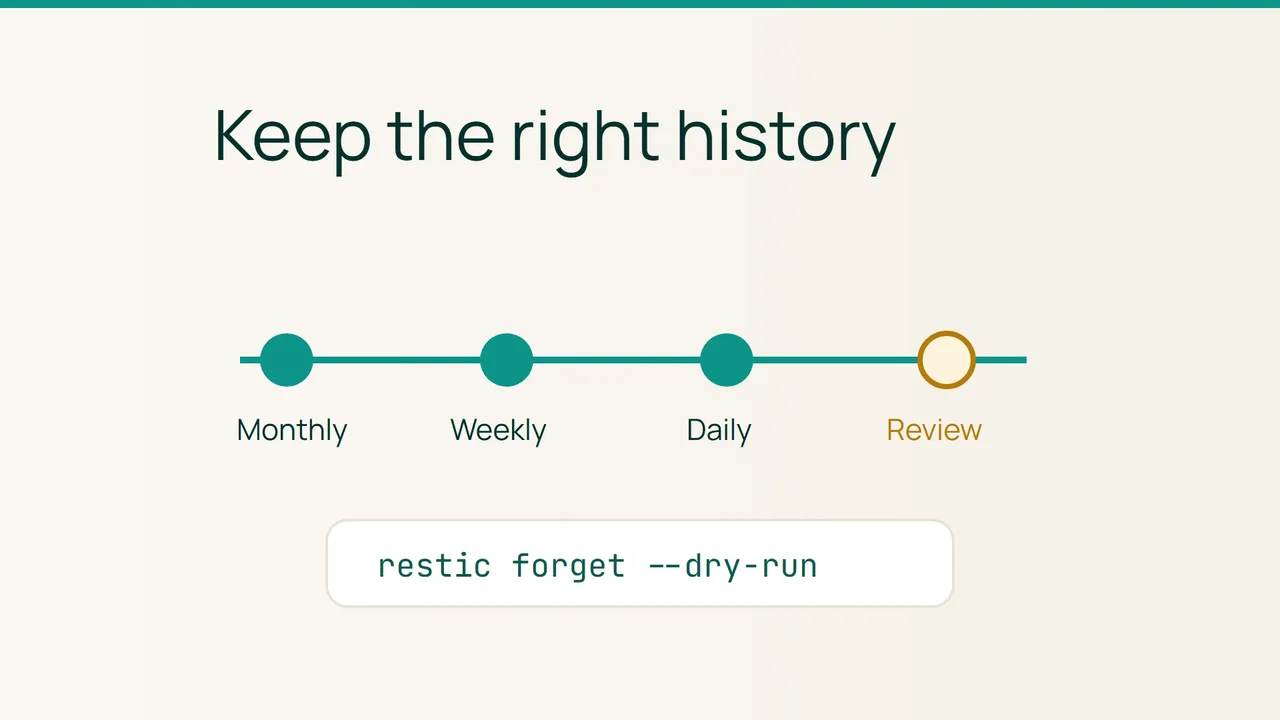
Infrastructure automation, illustrated by Vultr's Cycle.io MCP announcement, makes routine changes easier to request. Backup cleanup needs its own acceptance step: preview the restore points you would retain before turning a policy into a scheduled deletion.
1. Start with a recovery requirement
This walkthrough assumes restic already backs up your VPS to a repository you can access. Use your established repository configuration and secure authentication method. Keep passwords out of commands copied into tickets or operating notes.
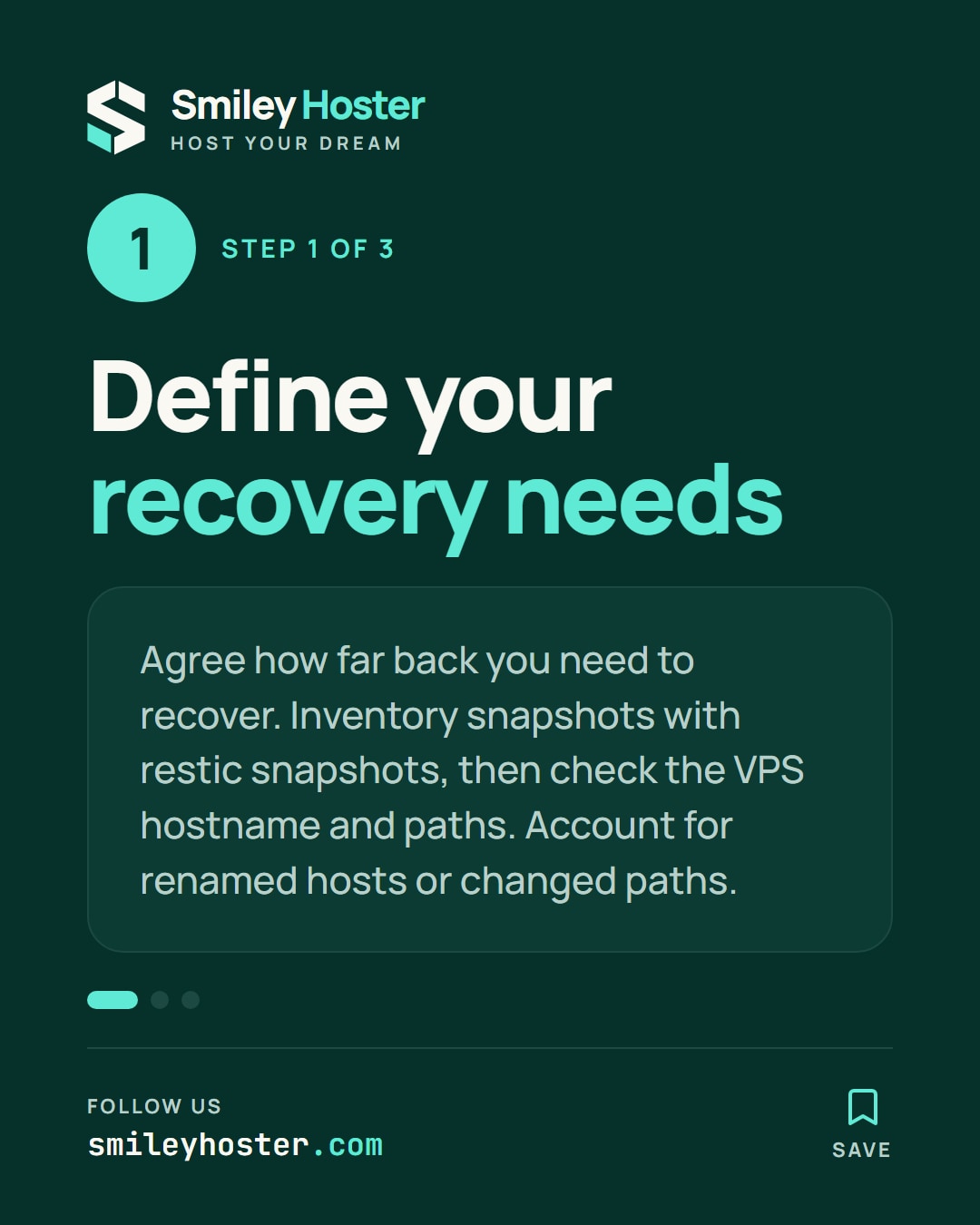
Write down the question the policy must answer. For example, how far back should you be able to recover a file after an unnoticed mistake? Choose this requirement with the person responsible for the data. Storage pressure alone should not decide which history matters.
Inventory the existing snapshots:
restic snapshotsFind the hostname and paths recorded for the VPS. The following example uses vps-prod, which you must replace. Check whether the machine was renamed or its backup paths changed. A shared repository may hold several unrelated systems, so begin with a clearly scoped review.
Make a small worksheet with the recovery need, relevant paths and an example snapshot that meets it. This becomes your basis for accepting or rejecting the policy.
2. Preview the proposed selection
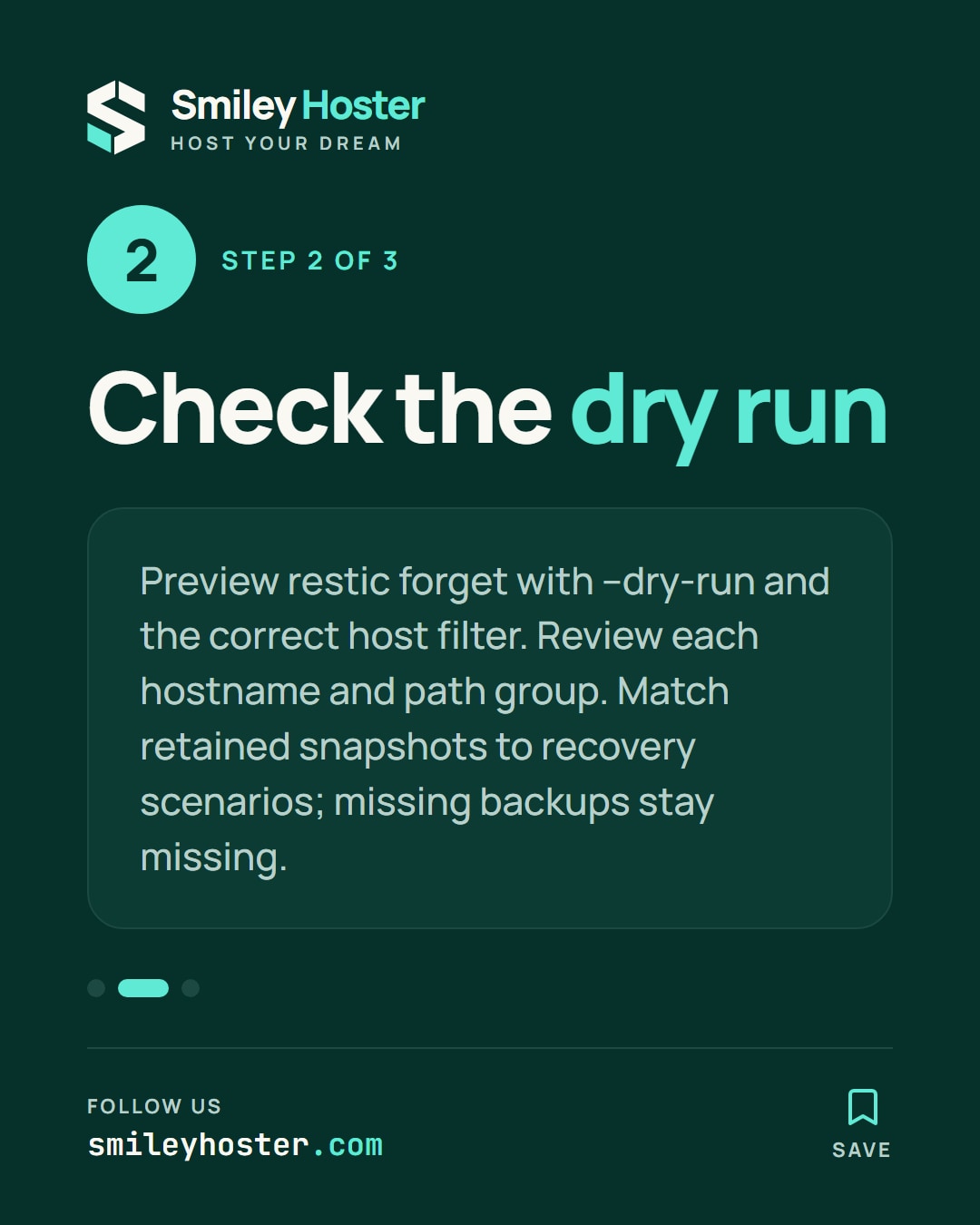
Run this illustrative policy without applying it:
restic forget --host vps-prod \ --keep-daily 7 --keep-weekly 4 \ --keep-monthly 6 --dry-runThe numbers are examples to evaluate, not a standard retention requirement. Restic normally groups snapshots by hostname and paths. Read the preview for each group rather than treating the repository as one continuous history.
Retention rules overlap, so adding the three numbers does not give an exact snapshot count. Missing backup periods also remain missing. Keeping more history cannot recreate a backup that never happened.
Check the retained list against a recent accidental edit, a mistake discovered later, and a request for an older version. For each scenario, identify the snapshot you would use. Mark any case where you cannot find an acceptable point.
3. Approve the policy before any deletion
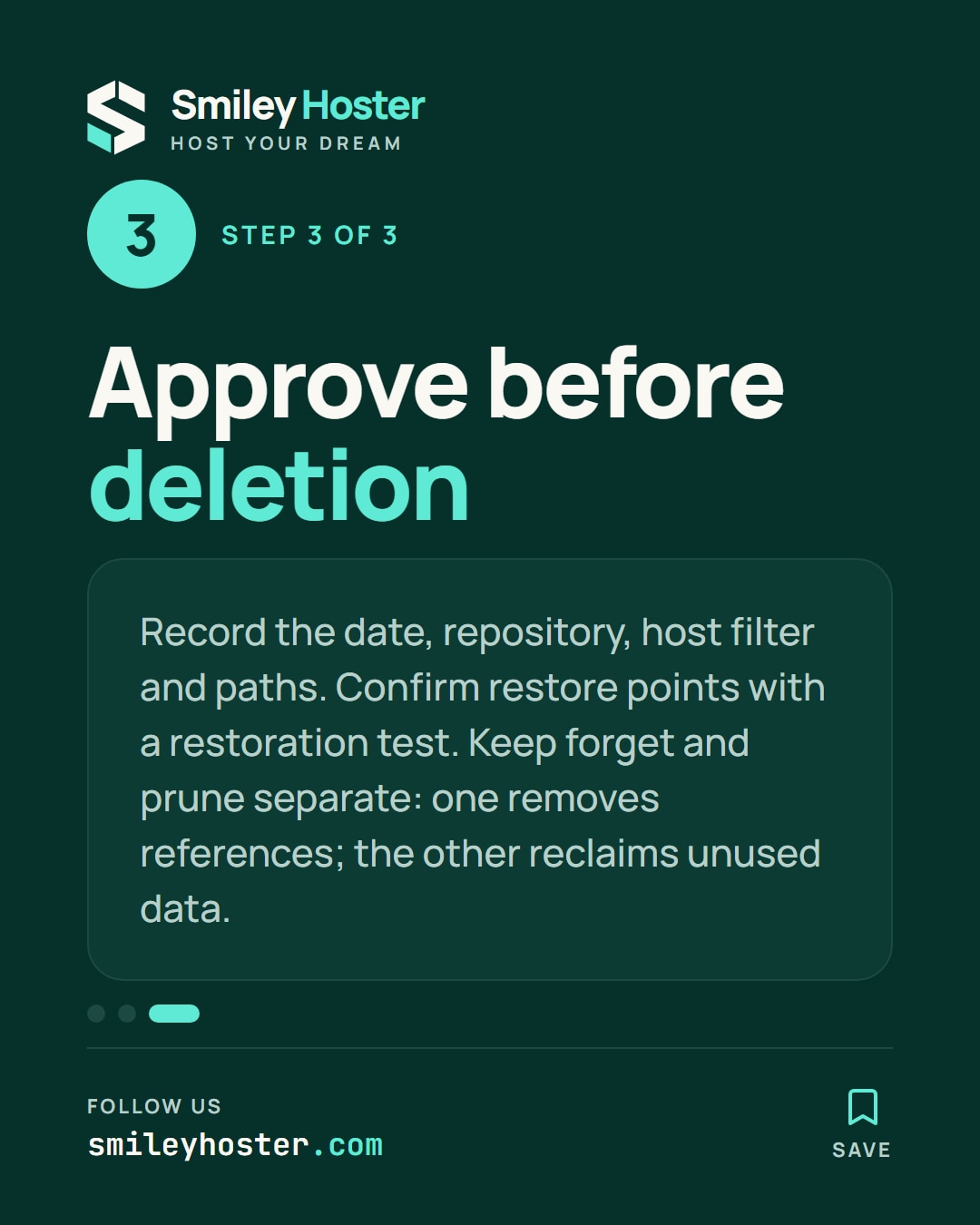
Save the review date, repository identity, hostname filter and relevant paths. If others depend on the repository, ask them to assess the same preview. They may know about a historical version that still needs protection.
Separate two operations in your procedure: forget removes snapshot references; prune reclaims data no longer needed. This exercise performs neither actual deletion nor space recovery. Do not add destructive cleanup to your backup schedule just because the preview command completed successfully.
The acceptance result is a documented retention decision backed by identifiable restore points and a restoration test. If a requirement is unmet, revise the backup frequency or retention choice first, then preview again before scheduling cleanup.
Sources: Vultr, restic — retention.
See it in our social posts
The key steps of this article, as a carousel. Follow us to catch the next ones.