

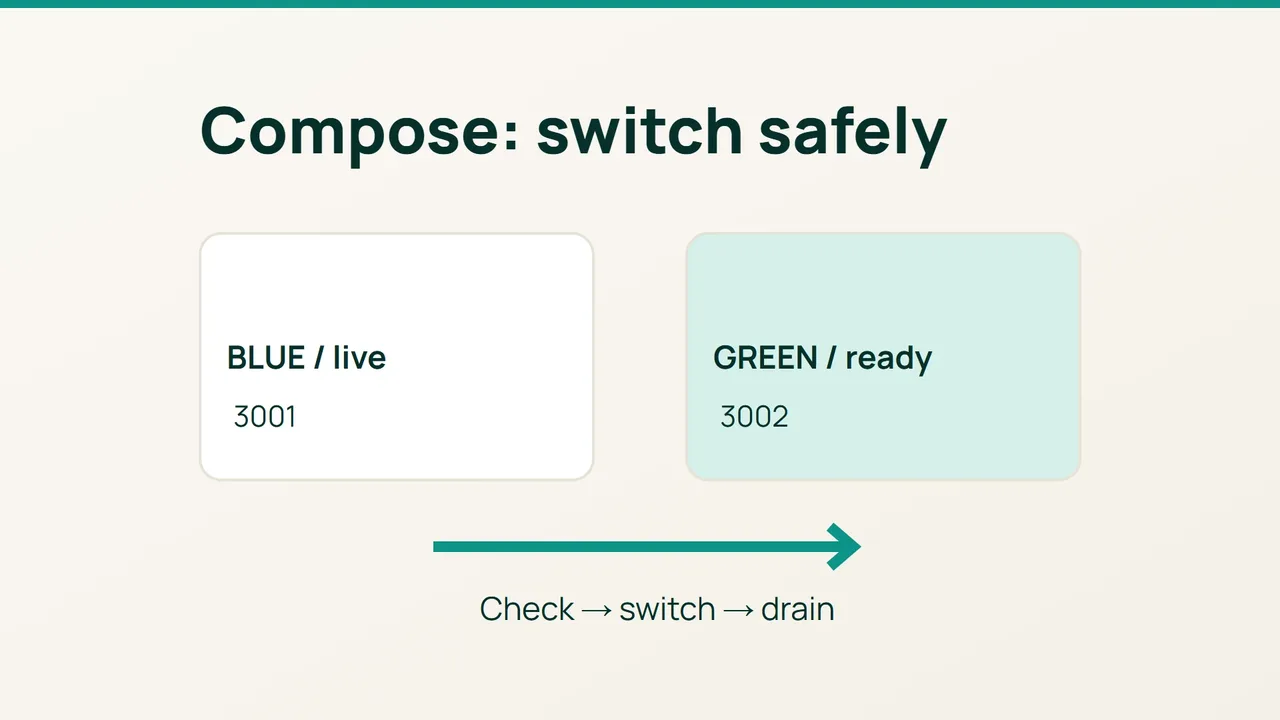
Docker's production guide describes recreating a service when its image changes. A single replacement container leaves a service gap; this design keeps the old application running while a separate Compose project is prepared and checked.
1. Define the deployment boundary
You need Docker Engine, the Compose plugin, an HTTPS Nginx site and a tested application image. Inside the container, the app must listen on 0.0.0.0:3000. Its /health route should succeed only when required dependencies are ready.
Use this recipe for a stateless HTTP frontend with shared external storage and sessions. Keep scheduled jobs and workers outside the duplicated deployment. Both versions must understand the database schema; take a backup before schema changes.
Create compose.yaml in a dedicated deployment directory:
services: web: image: ${APP_IMAGE:?APP_IMAGE required} ports: - "127.0.0.1:${APP_PORT:?APP_PORT required}:3000" restart: unless-stopped mem_limit: 512m logging: driver: json-file options: max-size: "10m" max-file: "3"Supply any additional settings your application needs. The memory cap is an illustrative starting value: measure your workload. Budget space for both copies, the operating system, Nginx and headroom.
Create blue.env containing APP_IMAGE= followed by your actual immutable image tag or digest, and APP_PORT=3001. In green.env, use the replacement image and APP_PORT=3002. These files feed Compose interpolation; they do not automatically become container environment variables.
2. Establish the live route, then the candidate
Run these commands from the deployment directory:
docker compose --env-file blue.env -p blue pulldocker compose --env-file blue.env -p blue up -dcurl -fsS http://127.0.0.1:3001/healthPut this upstream in /etc/nginx/conf.d/app-upstream.conf:
upstream app_backend { server 127.0.0.1:3001;}Use it in your domain's HTTPS server block:
location / { proxy_pass http://app_backend; proxy_set_header Host $host; proxy_set_header X-Forwarded-Proto $scheme;}Now bring up green independently:
sudo nginx -t && sudo systemctl reload nginxdocker compose --env-file green.env -p green pulldocker compose --env-file green.env -p green up -dcurl -fsS http://127.0.0.1:3002/healthdocker compose --env-file green.env -p green logs \ --tail=50 webdocker stats --no-streamExercise a real application operation through port 3002 as well. Process existence is weaker evidence than a successful request. Restart policies handle process exits; an application can remain stuck while its process stays alive.
3. Switch traffic with a rollback available
Change 3001 to 3002 in the upstream file, then validate and reload:
sudo nginx -t && sudo systemctl reload nginxcurl -fsS https://example.com/healthSubstitute your domain. Check from another network, confirm the served version and inspect errors and business operations. Leave blue running until requests using the previous configuration finish. Long-lived connections require an application-specific draining policy.
If acceptance fails, restore port 3001 and repeat the Nginx test and reload. A rollback works only while the old application remains compatible with the data. After validation and draining:
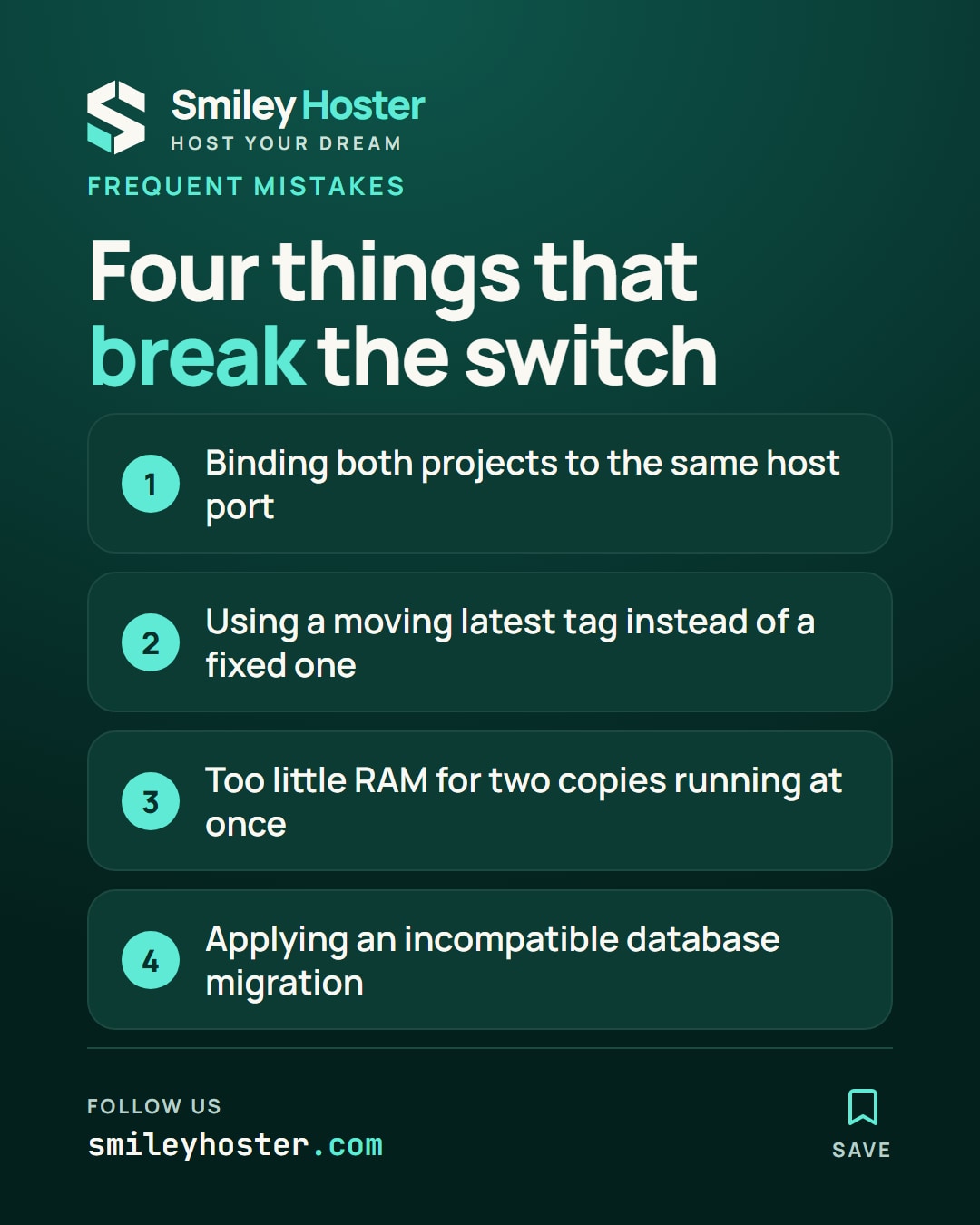
docker compose --env-file blue.env -p blue stopFrequent mistakes: binding both projects to one host port, using a moving latest tag, leaving too little RAM for overlap or applying an incompatible database migration. Do not use down -v as routine cleanup: volume deletion is outside this procedure.
This arrangement can avoid an application-update outage when its prerequisites hold. It does not protect against failure of the single VPS.
Sources: Docker production guide, Docker Compose services.

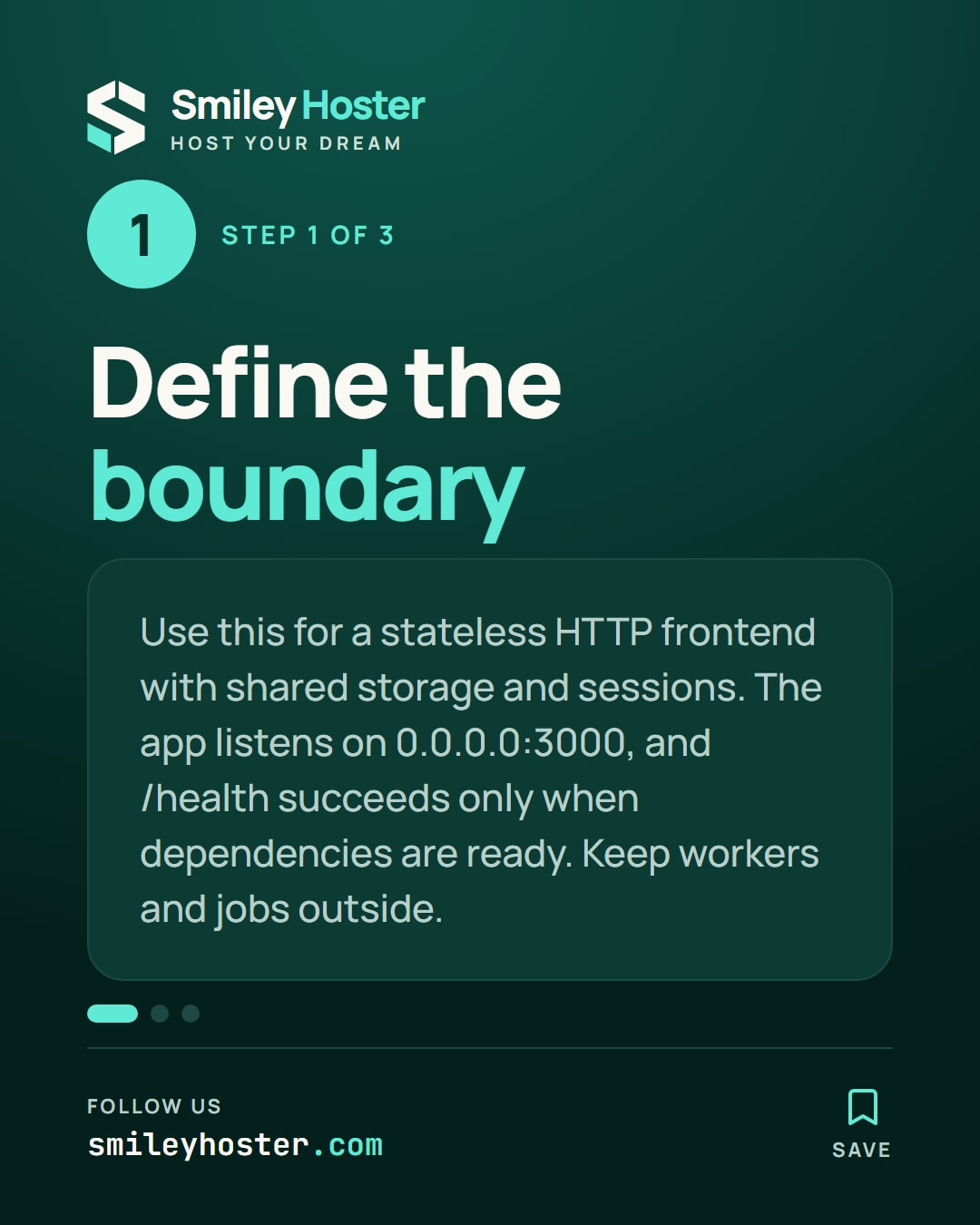
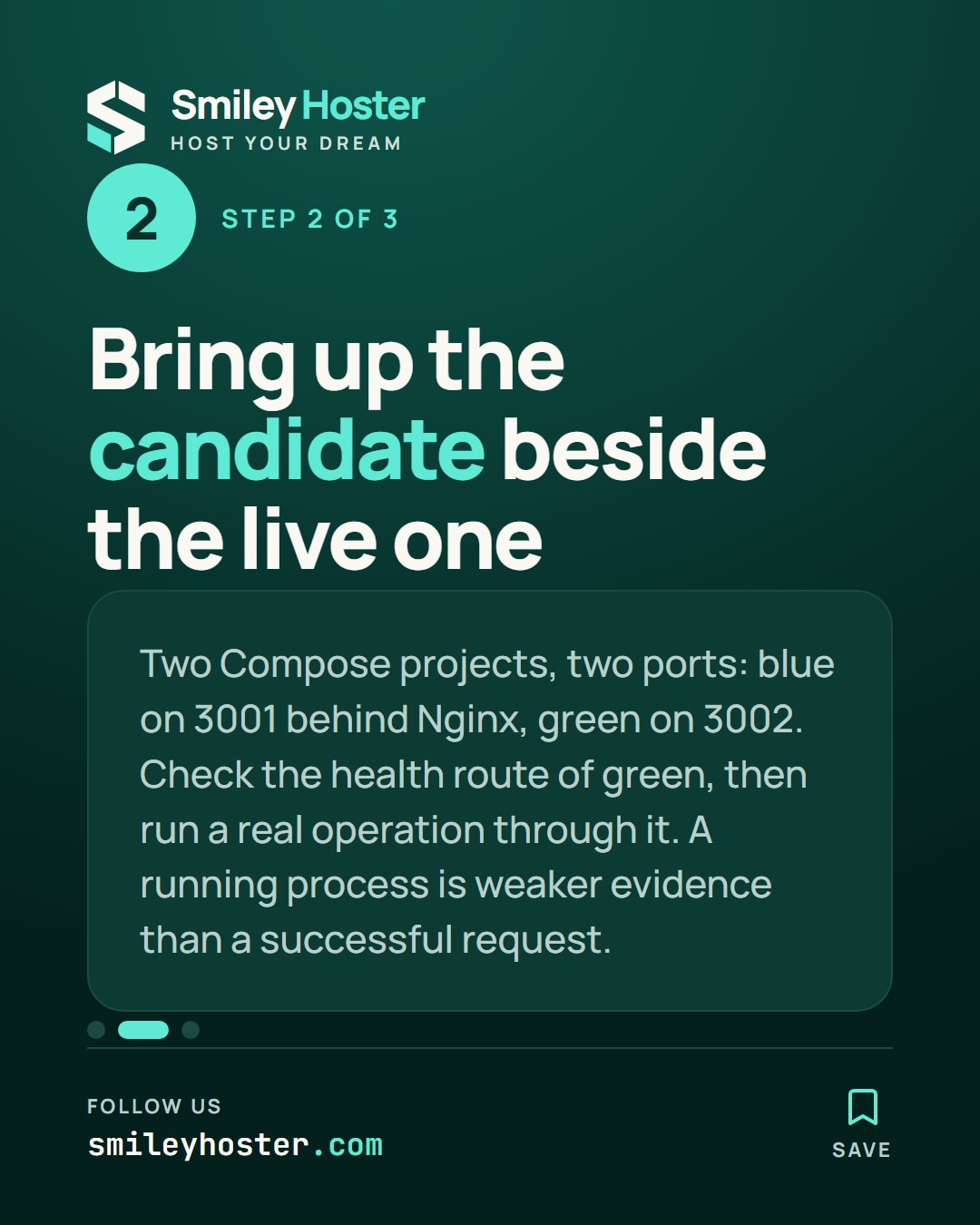
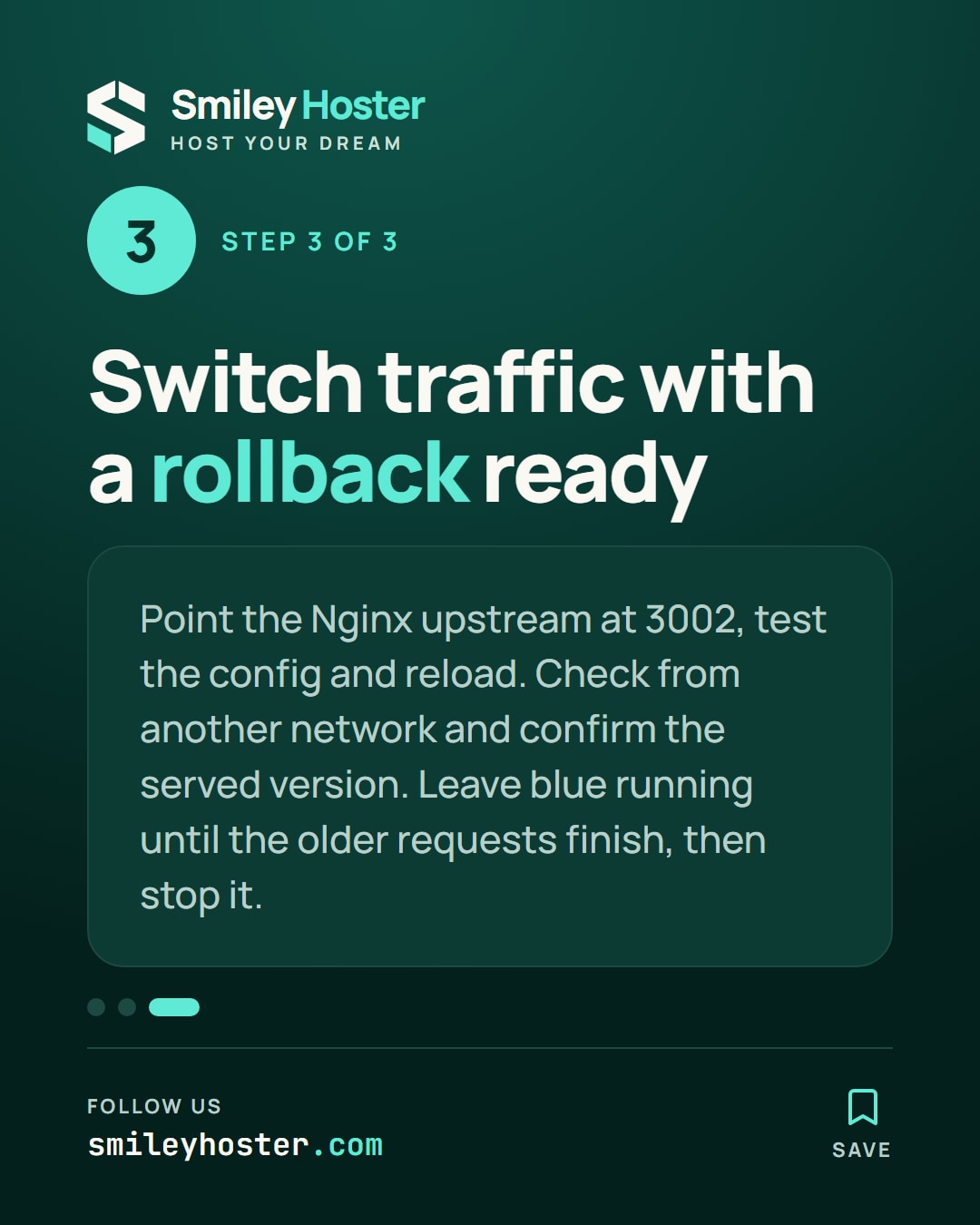

See it in our social posts
The key steps of this article, as a carousel. Follow us to catch the next ones.