

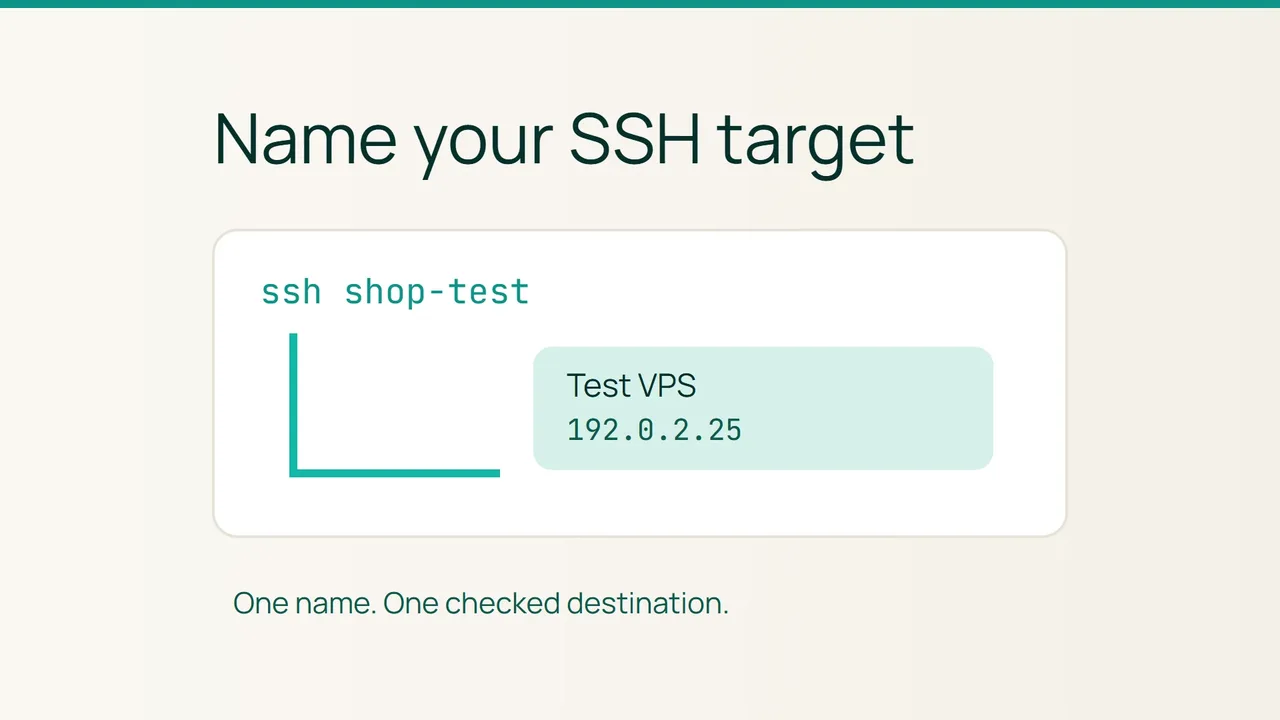
Vultr's announcement about Cycle.io brings infrastructure operations into everyday development tools. A useful preparation for any shortcut is to make the target unmistakable: create a named SSH connection for a VPS you can already reach.
1. Write down the intended destination
Do this on your own computer with OpenSSH, rather than inside the VPS terminal. Gather the server address, remote username and SSH port from a working connection or your current inventory. An old screenshot is a poor reference after a server migration.
Pick a name such as shop-test. Make the environment visible in the name, especially if you also manage production. In a short local note, record the project and the person responsible for the server. You now have something concrete against which to check the result.
The address and account below are placeholders. Replace them before connecting. Creating a shortcut does not create a remote account or grant access to a server.
2. Save one specific connection block
Open the .ssh/config file in your local user directory. Preserve any existing entries and add this block. Put specific entries before broad Host * defaults, because OpenSSH generally uses the first value it obtains for an option.
Host shop-test HostName 192.0.2.25 User deploy Port 22The first line names your shortcut. The following lines select the actual address, remote account and SSH port. Use the server's existing port; changing this client entry does not change what the server listens on.
Keep passwords and private key contents out of this file. If an entry already describes this destination, update that entry instead of adding another almost identical block. Check that other accounts on a shared computer cannot edit your configuration.
Keep the scope small for this first change. Adding several destinations together makes it harder to tell which entry caused an unexpected connection.
3. Try the alias before using it for work
From a fresh terminal window, run:
ssh shop-testCheck the server identity during connection and compare the environment you reach with your note. A friendly alias is a label you chose, not proof of the remote machine's identity.
If the connection fails, revisit the address, account and port before changing anything on the VPS. Keep your usual connection method available while testing. A username mistake does not justify altering firewall rules.
Success means reaching the same server with the same account through a clearer command. Only then use the alias in your everyday workflow. To undo this local change, remove the block you added and return to the original connection command.
Sources: Vultr, OpenSSH documentation.

See it in our social posts
The key steps of this article, as a carousel. Follow us to catch the next ones.