

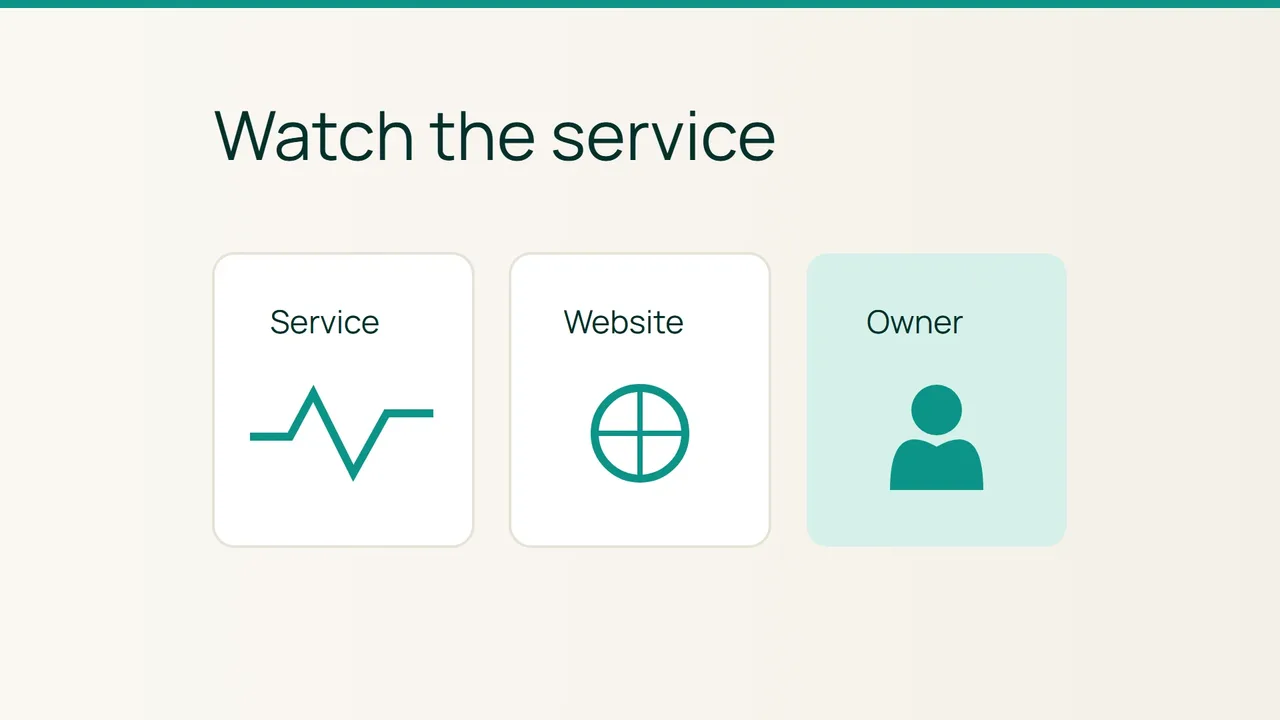
Hostinger's recent scheduled-job notifications highlight a useful operations question: which result should reach a human? On a VPS, start with a service check whose meaning you understand before wiring it into an alert.
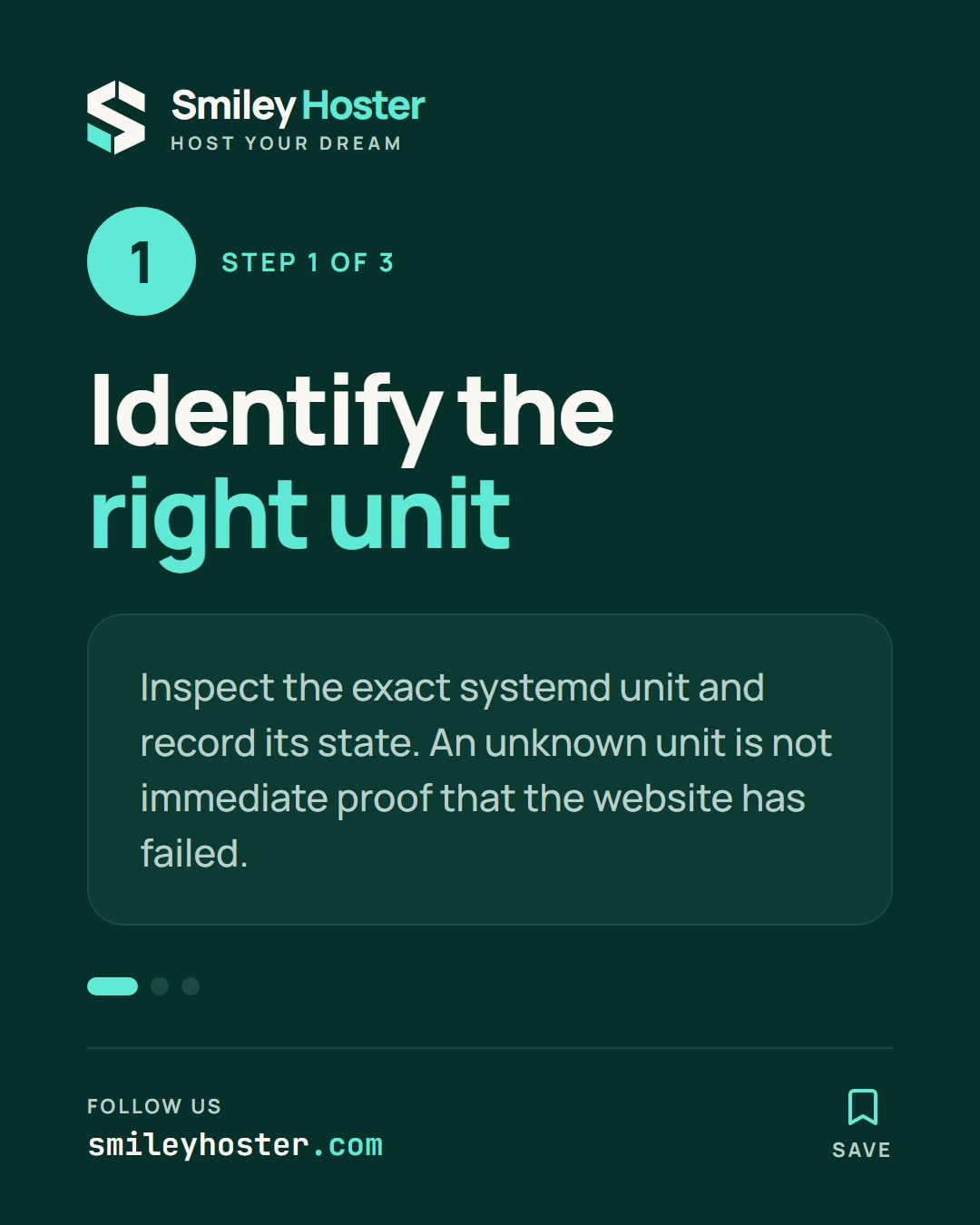
1. Identify the unit behind the service
These commands apply to Linux servers managed with systemd. A container or another application supervisor may need a different check. The example uses nginx.service; replace it with the actual unit responsible for your service.
Begin with an interactive inspection:
systemctl status nginx.service --no-pagerRecord the exact unit name and the state you see. An unknown unit is a reason to check your inventory, not immediate proof of a failed website. Likewise, whether a service is enabled for startup is a different question from whether it is running now.
Choose the customer outcome you care about before creating an alarm. It might be loading an account page or submitting a test request. This gives the infrastructure check a purpose and helps you decide what evidence to collect when it fails.
2. Separate process state from application health
For a small scriptable check, query one unit:
systemctl is-active --quiet nginx.serviceecho $?Zero means the unit is active. Investigate another result. With --quiet, no descriptive output is expected. To inspect failed units interactively, use:
systemctl --failed --no-pagerTreat these as observations, not instructions to restart production automatically. Capture the time and the last relevant change before taking corrective action. Clearing a failure flag is not evidence that its cause has been resolved.
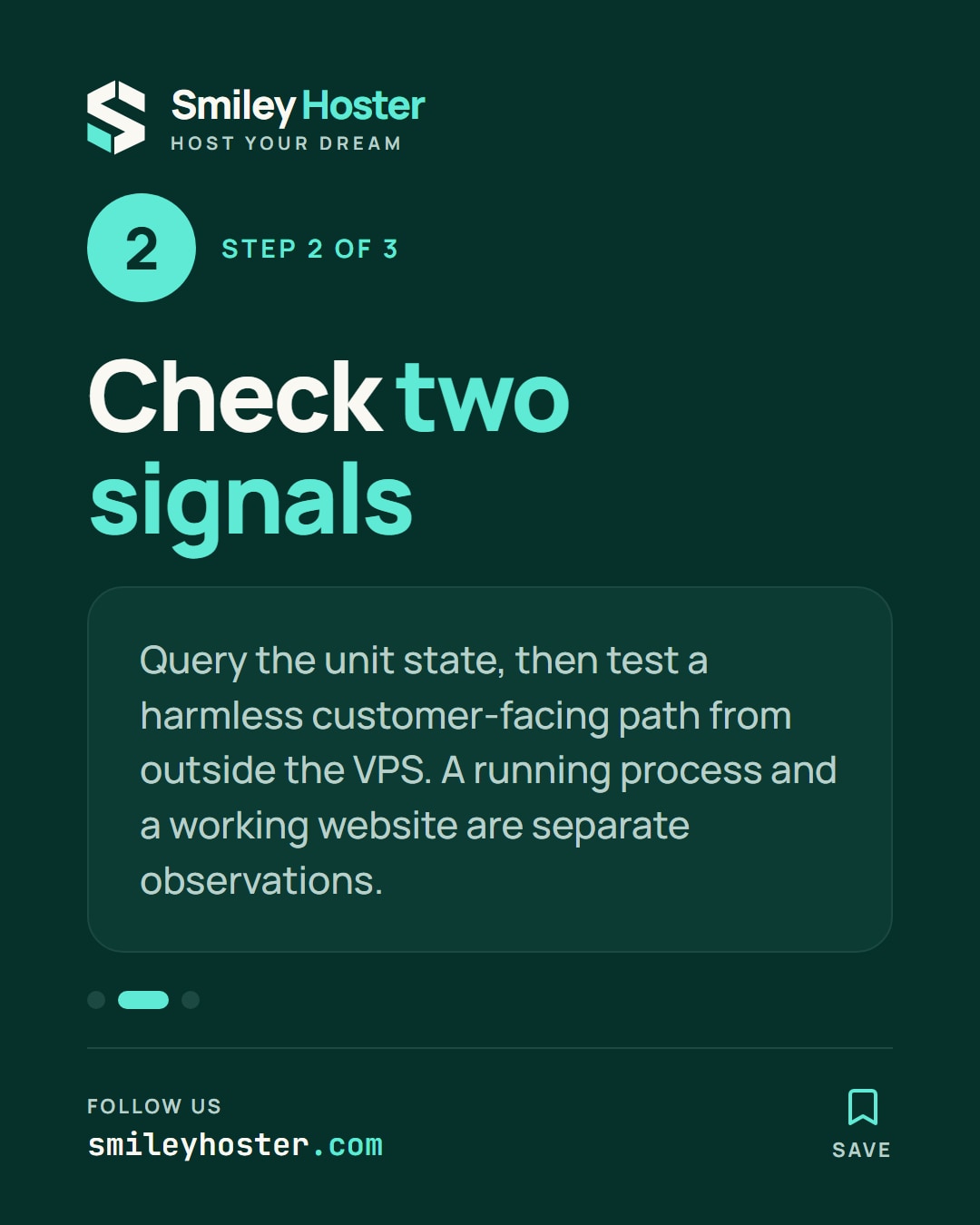
Then test the application from outside the VPS using a harmless customer-facing path. A running process and a working website are separate observations. Record both, including the page or action tested, so another person can reproduce your check.
Avoid choosing a test that creates real orders, sends customer emails or modifies production data. Define a safe acceptance path with the application owner.
3. Make the result actionable
Use your existing monitoring system to attach the check to an owner and a short response procedure. Account for loss of contact with the VPS as well: a local script cannot deliver a useful result while its host is unavailable.
Exercise notifications in a test environment or through the monitoring tool's test function. Confirm that somebody receives the failure and recovery messages. There is no need to stop the production web service just to test the delivery channel.
Choose an interval based on the detection delay your service can tolerate. Your handoff should contain the server, unit, timestamp, local state, external test result and responsible person. If the unit is active while the application fails, preserve that distinction; it is valuable evidence for the next investigation.
Sources: Hostinger, systemd — systemctl source documentation.

See it in our social posts
The key steps of this article, as a carousel. Follow us to catch the next ones.