

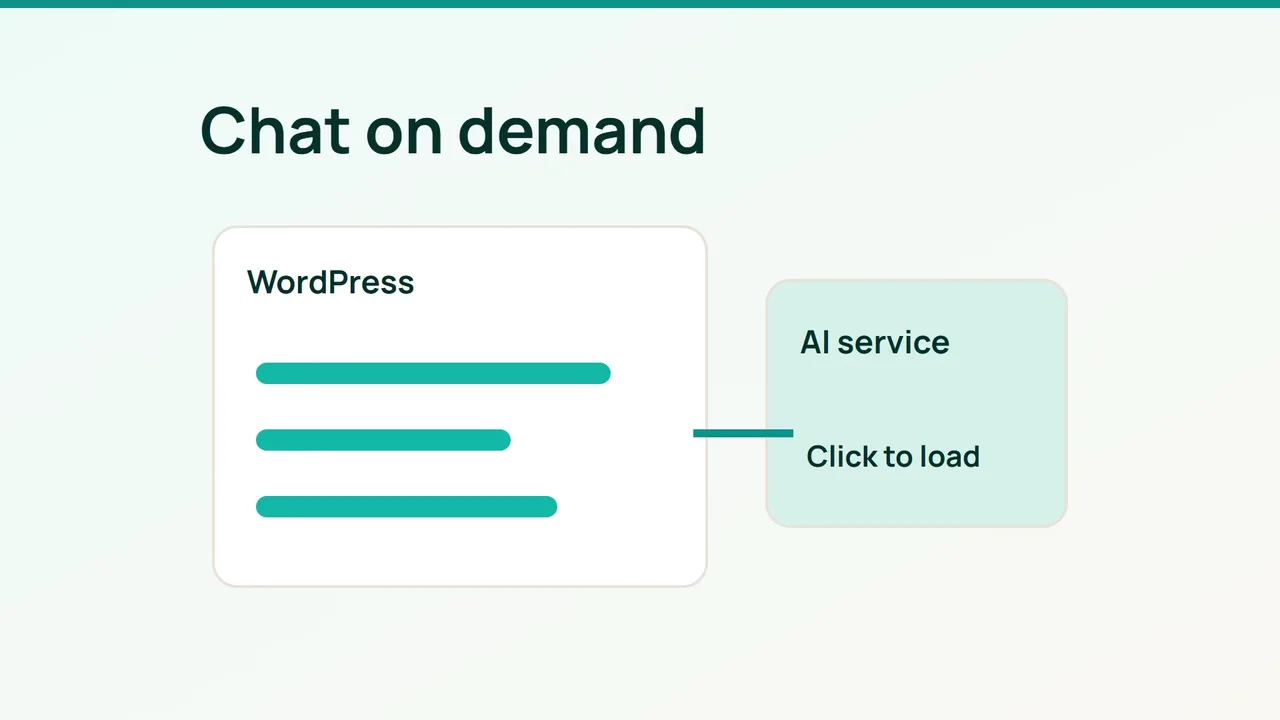
An AI chat box can affect a WordPress page before anybody sends a message. Treat the interface and the model request as two separate performance budgets, then launch a limited pilot on staging.
1. Pick the integration you can operate
AI Engine provides WordPress connectors for providers including OpenAI, Anthropic and Google. That makes a plugin one option, alongside a hosted widget or a custom interface backed by your own server.
| Approach | Useful when | Check before choosing |
|---|---|---|
| AI Engine plugin | Editors need dashboard configuration | PHP requirements, enabled modules and theme compatibility |
| Hosted chat widget | You want managed operations | Subscription limits, data handling and script size |
| Custom server relay | You need detailed control | Maintenance, monitoring and abuse protection |
Record the installed version and check the vendor requirements against your staging environment. Initially disable uploads, voice, long-term memory and site-changing tools. Use five questions drawn from public support information, with no access to customer orders.
2. Keep credentials behind the server
Configure a provider connection in the plugin, using a separate test credential and a model your account can access. For custom code, load the credential from server environment settings or a secrets manager. Browser requests should reach your relay; the provider credential must never appear in downloaded JavaScript.
Set server-side message length, request frequency and timeout limits. Hiding a key does not prevent strangers from spending through an unrestricted public endpoint. Include a working contact link for failures.
Load a custom chat module when the visitor asks for it. This example assumes your team has created the button and local module; it is not an AI Engine configuration snippet:
const button = document.querySelector("#open-chat");button?.addEventListener("click", async () => { button.disabled = true; try { const chat = await import("/assets/chat.js"); await chat.open(); } catch { button.textContent = "Contact support"; } finally { button.disabled = false; }}, { once: true });Implement keyboard focus handling and a separate fallback link. With a hosted widget, use its supported lazy-loading method. Do not indiscriminately delay checkout dependencies.
3. Make the launch decision from measurements
Capture the same page in DevTools with chat disabled, with chat unopened, and after opening it. Compare network requests, JavaScript work, menu responsiveness and time to the first answer. Repeat on a mobile device and simulate an unavailable provider.
Build a cost worksheet covering the plugin or service subscription, input and output tokens, retrieval and hosting. Apply the selected provider’s current rates to measured usage; add application-level spending controls rather than relying solely on alerts.
Before accepting real messages, document where they go, how long they remain and how deletion works. Avoid recording complete conversations by default. Do not share cached private answers between visitors.
Common mistakes
A site-wide widget, exposed credentials and unrestricted public requests solve different problems; lazy loading alone fixes none of the security issues.
FAQ and final checks
Will lazy loading make the model answer faster? It reduces initial browser work, not model processing.
Does a free plugin include free AI usage? Provider billing must be checked separately.
Release only after confirming that credentials stay off the browser, excess requests are rejected, fallback contact works and important page interactions remain responsive.