

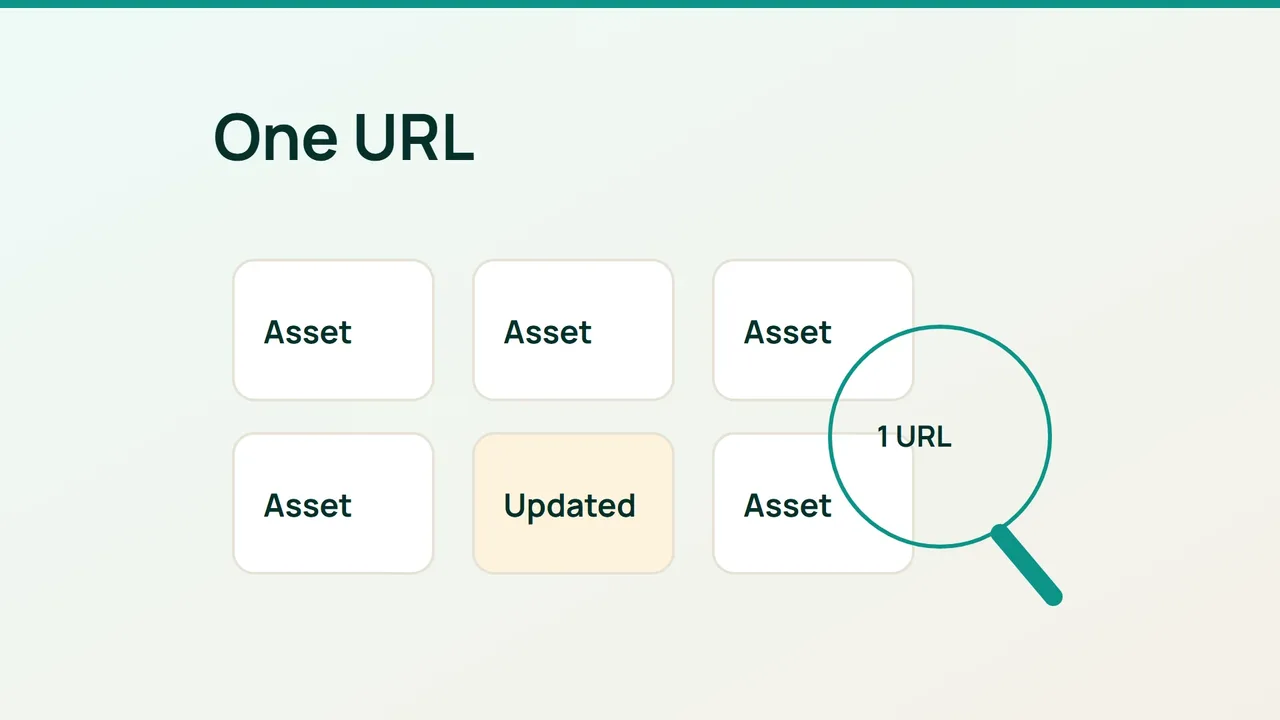
Cloudflare's new Vary controls highlight a detail that matters during troubleshooting: one URL may have several representations. When an updated asset still looks old, use a targeted purge and verify the actual content afterward.
1. Locate the request behind the symptom
Open the browser's network panel and reload the affected page. Identify the stale image, stylesheet or other public resource, rather than guessing its address from the filename you edited.
Copy the complete request URL, including scheme, hostname, path and any query parameters. Check which page or stylesheet initiated it. The deployed file may be correct while the page still points to an older asset.
If the request redirects, distinguish the starting URL from the final destination. Removing a cached redirect does not remove the destination resource from cache.
Ask the person responsible for deployment to confirm that the origin already has the intended version. Otherwise a successful purge can simply refill the cache with the same old bytes. Record an identifiable change in the new file so that validation does not depend on appearance alone.
2. Purge the exact resource
In Cloudflare's cache configuration, choose Custom Purge and select URL. Enter the verified address, review it and submit the purge.
Preserve the path's case: /Logo.png is not interchangeable with /logo.png. Single-file purge does not accept wildcards, so do not replace an exact address with an approximate pattern.
This dashboard procedure suits a straightforward URL-based object. A custom cache key or certain special request headers may require a different procedure described in Cloudflare's documentation. Confirm the applicable method before assuming the object was covered.
A Vary configuration change also does not automatically purge existing content. If the incident followed that kind of edit, include stored responses in the investigation rather than treating the new setting as a clean slate.
3. Check bytes as well as cache status
Download the public resource and save its response headers:
curl -sS -D headers.txt \ https://example.com/assets/site.css \ -o site.cssSubstitute the actual URL. Look for the known change in the downloaded file, then inspect CF-Cache-Status. A refill after a purge can show MISS, but another visitor may already have warmed the object before your test.
The decisive result is the correct file version. If only the browser remains stale, inspect its local cache and the address it actually requests. If the download is old too, investigate the origin and other caching layers.
Keep the purged URL, timestamp and observed version marker in the incident note. That evidence is more useful than repeatedly clearing every cached object.
Sources: Cloudflare Blog, Cloudflare documentation.