

A cPanel website can run out of PHP workers while the rest of its server appears idle. MultiPHP Manager’s separation between system defaults and domain settings provides a useful way to test a measured change on one pool.
Search intent: allocate PHP-FPM capacity across cPanel domains and troubleshoot 503/504 responses. This procedure targets Apache with PHP-FPM; an active LiteSpeed installation uses lsphp and needs an LSAPI-specific approach.
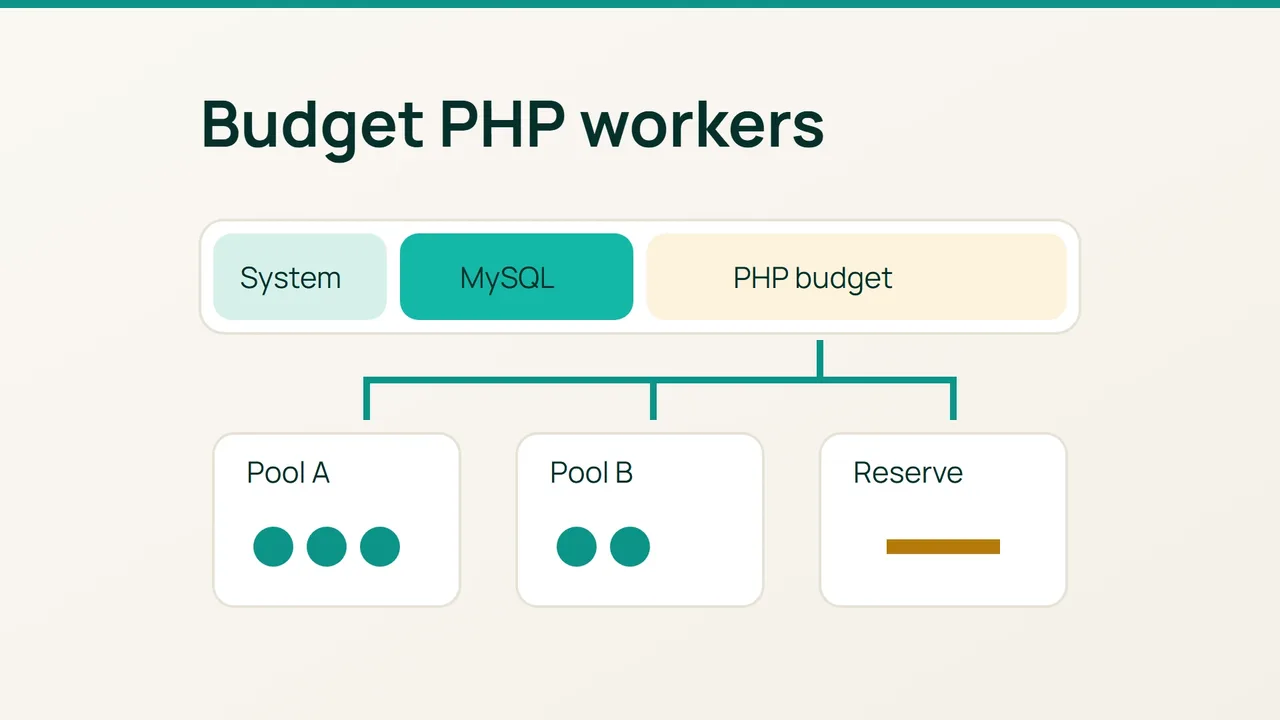
1. Establish a memory budget before adding workers
Diagnose the actual failure
Open WHM, Software, MultiPHP Manager, User Domain Settings. Record the domain’s PHP version, FPM status and pool values. A pool serves a site through worker processes; Max Children maps to pm.max_children. It is a concurrency ceiling, not a server-wide memory guarantee.
Observe the account during representative requests:
account=cpuserps -u "$account" -o pid,rss,etime,argsfree -mvmstat 1 10Replace cpuser with the real account. Convert RSS from KiB to MiB by dividing by 1024. Sample active workers repeatedly, including expensive requests. Shared pages make summed RSS an imperfect but conservative planning estimate.
Inspect the version’s FPM log, for example /opt/cpanel/ea-php83/root/usr/var/log/php-fpm/error.log, and domain PHP errors beneath /home/cpuser/logs/. Substitute the installed PHP version. A full pool, a missing socket, a crashed worker and an out-of-memory event require different responses. A 504 can originate in a proxy waiting for an upstream dependency; raising timeouts may conceal the cause.
Back up settings and calculate a starting point
Record the current interface values and preserve account metadata:
umask 077save=$(mktemp -d /root/fpm-before.XXXXXX)cp -a /var/cpanel/userdata/cpuser "$save/"The domain metadata path is /var/cpanel/userdata/cpuser/example.com.php-fpm.yaml. Preserve /var/cpanel/ApachePHPFPM/system_pool_defaults.yaml too if it exists and you intend to change defaults. This procedure uses domain settings rather than manual YAML edits.
Subtract realistic allowances for the OS, database, web server, other services and bursts from your total RAM. Then allocate the remaining budget across all pools and PHP versions.
For a worked planning example, a 1,200 MiB pool budget divided by a 100 MiB worker estimate gives 12 as an arithmetic ceiling. Starting at 8 leaves room for variation. These numbers are illustrative, not recommended defaults. CPU capacity and database concurrency can require a lower ceiling.
2. Make one domain-level change at a time
- Use EasyApache 4 to provide a supported PHP release and required extensions. Assign an explicit version to the pilot domain in MultiPHP Manager. Inherit does not allow that domain’s FPM configuration.
- Enable PHP-FPM and open PHP-FPM Settings. Set the initial Max Children value, use Validate Settings and then Update. Leave Max Requests and Process Idle Timeout unchanged during the first comparison.
- Review
memory_limitand application execution limits in MultiPHP INI Editor. PHP’s memory limit is not reserved RAM and does not represent every byte a worker consumes. Raising it together with the worker ceiling changes two risks at once. - Check OPcache in the installed version’s actual web execution context. CLI output alone cannot establish what the domain’s web workers use. Use a protected administrator diagnostic and remove it afterwards; never leave public phpinfo output. Bytecode caching does not remove SQL locks or stalled network calls.
- Run realistic traffic and increase capacity in small steps only while queues improve without creating swap, database contention or higher error rates.
Rollback
Restore recorded domain values through WHM if the result deteriorates. Reassign the previous available PHP version if compatibility breaks. Use the saved metadata to compare settings; do not overwrite the entire live account directory as a routine rollback.
3. Final verification
Compare the same workload before and after: request latency, 503/504 counts, FPM warnings and available memory. Include neighbouring domains and the application’s next scheduled task. A successful idle request does not prove peak capacity.
Common mistakes
Editing only generated FPM configuration is not a durable configuration strategy. Applying one large limit to every domain ignores the combined budget. Increasing timeouts can keep workers occupied longer and worsen queues.
Production recommendations
Maintain a per-domain budget, a shared reserve and a written rollback trigger. Re-measure after application updates because worker memory changes with code and workload. Keep FPM status endpoints private.
Sources: cPanel MultiPHP Manager, domain settings, PHP-FPM configuration values.