

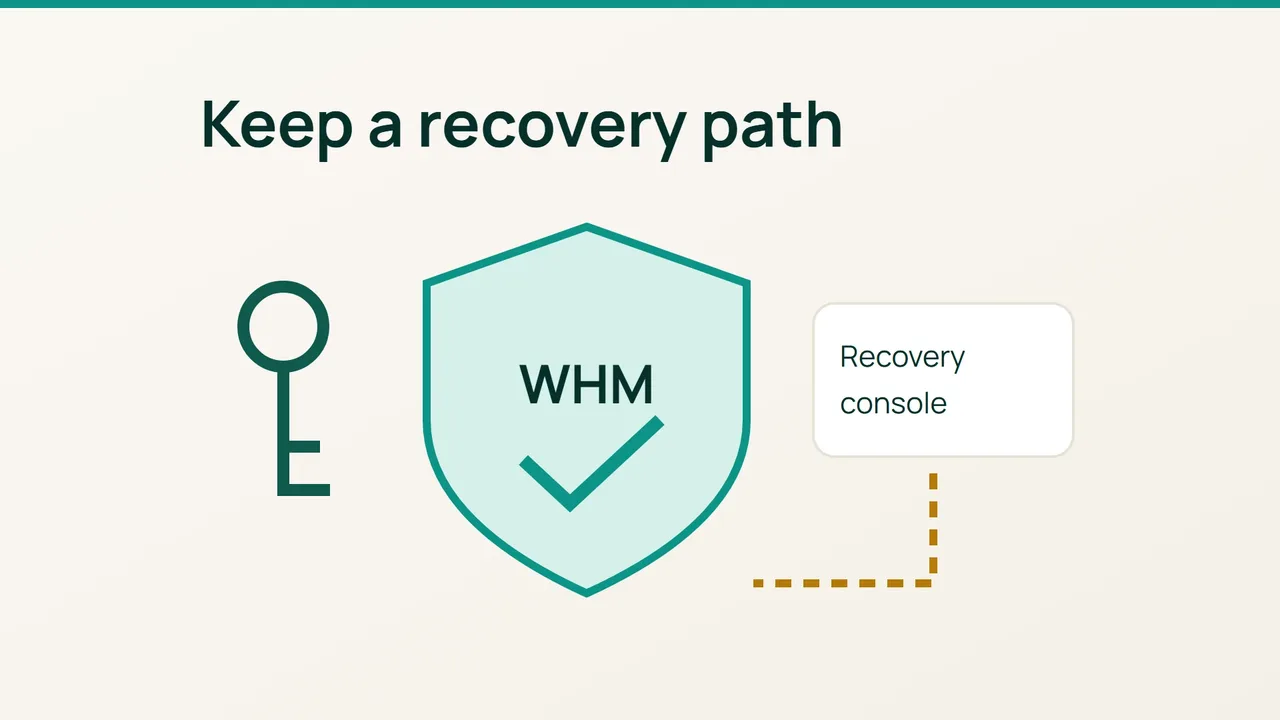
Hardening WHM can turn into an outage when authentication, firewall rules and SSH change together. Start with Security Advisor, but make a tested recovery route the prerequisite for every access restriction.
Search intent: reduce exposure on a production cPanel/WHM server while preserving administrator access. Run the examples only on systems and addresses you administer.
1. Separate exposure from authentication
How administrators get locked out
A changed outbound IP, an overlooked IPv6 route, an aggressive brute-force threshold or a broken SSH configuration can all block a legitimate operator. Password protection does not make a listening service unreachable from the Internet.
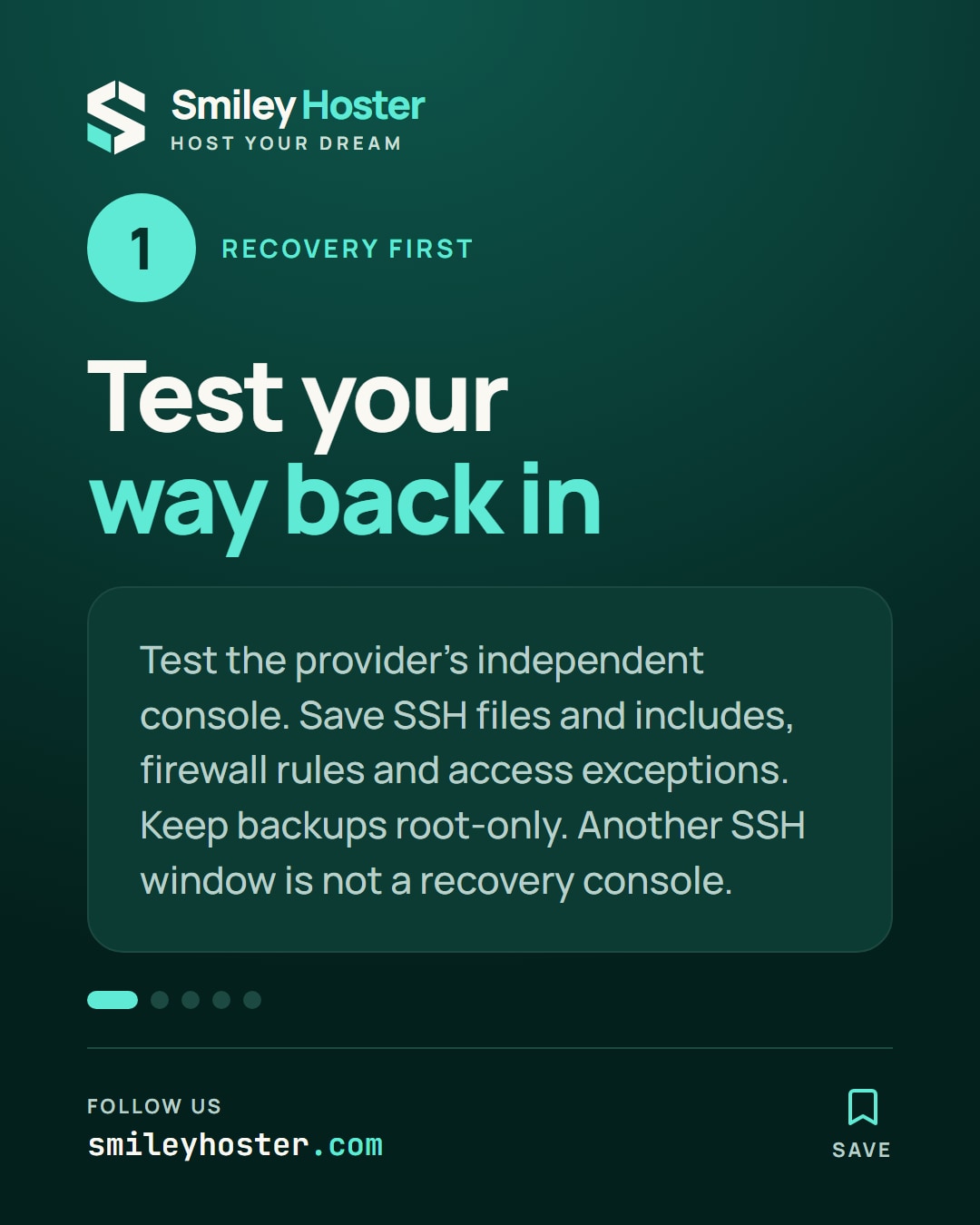
Open WHM’s Security Center, Security Advisor and prioritise findings. Test your provider’s independent console, including the privileges needed to repair networking and SSH. Another SSH window is useful, but it is not an independent recovery route.
Inspect the host:
ss -lntup/usr/sbin/sshd -TThe first command lists listeners, not firewall reachability. The second reports baseline effective SSH settings; evaluate Match rules separately for the relevant account and source address.
From an authorised external machine, substitute your server IP:
nmap -Pn -sT -p 22,80,443,2083,2087 192.0.2.20This limited TCP check is only a sample. Extend the inventory to the mail, DNS TCP/UDP, passive FTP and other services you actually operate, including IPv6. Keep customer-facing requirements separate from administrative access restrictions.
Save a recoverable configuration
umask 077save=$(mktemp -d /root/access-before.XXXXXX)cp -a /etc/ssh "$save/"The backup may contain private host keys and must remain root-only. Export the active firewall manager’s configuration and provider-side network rules separately. Record cPHulk exceptions and WHM restrictions. Preserve SSH Include files, including /etc/ssh/sshd_config.d/ where present, rather than saving only the main file.
2. Apply controls in a sequence you can test
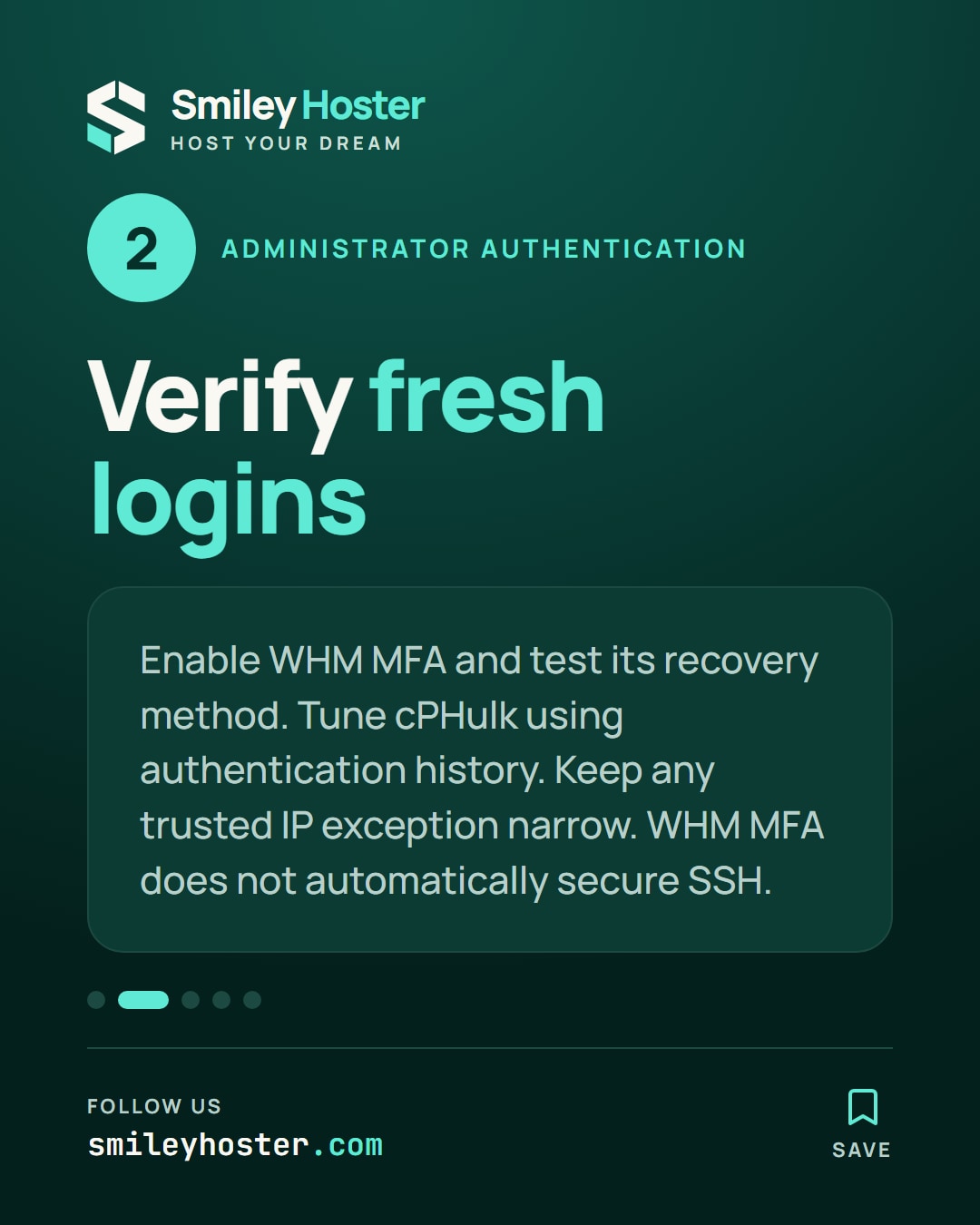
- Enable administrator MFA. Configure Two-Factor Authentication in WHM’s Security Center. Verify a fresh login and the recovery method available for your installation before ending the original session. WHM MFA does not automatically secure SSH.
- Tune cPHulk from evidence. Review authentication history in cPHulk Brute Force Protection before selecting thresholds. If a trusted exception is necessary, use a narrowly scoped, controlled administrator IP. Avoid broad subnets and shared outbound addresses. Check legitimate logins and notifications.
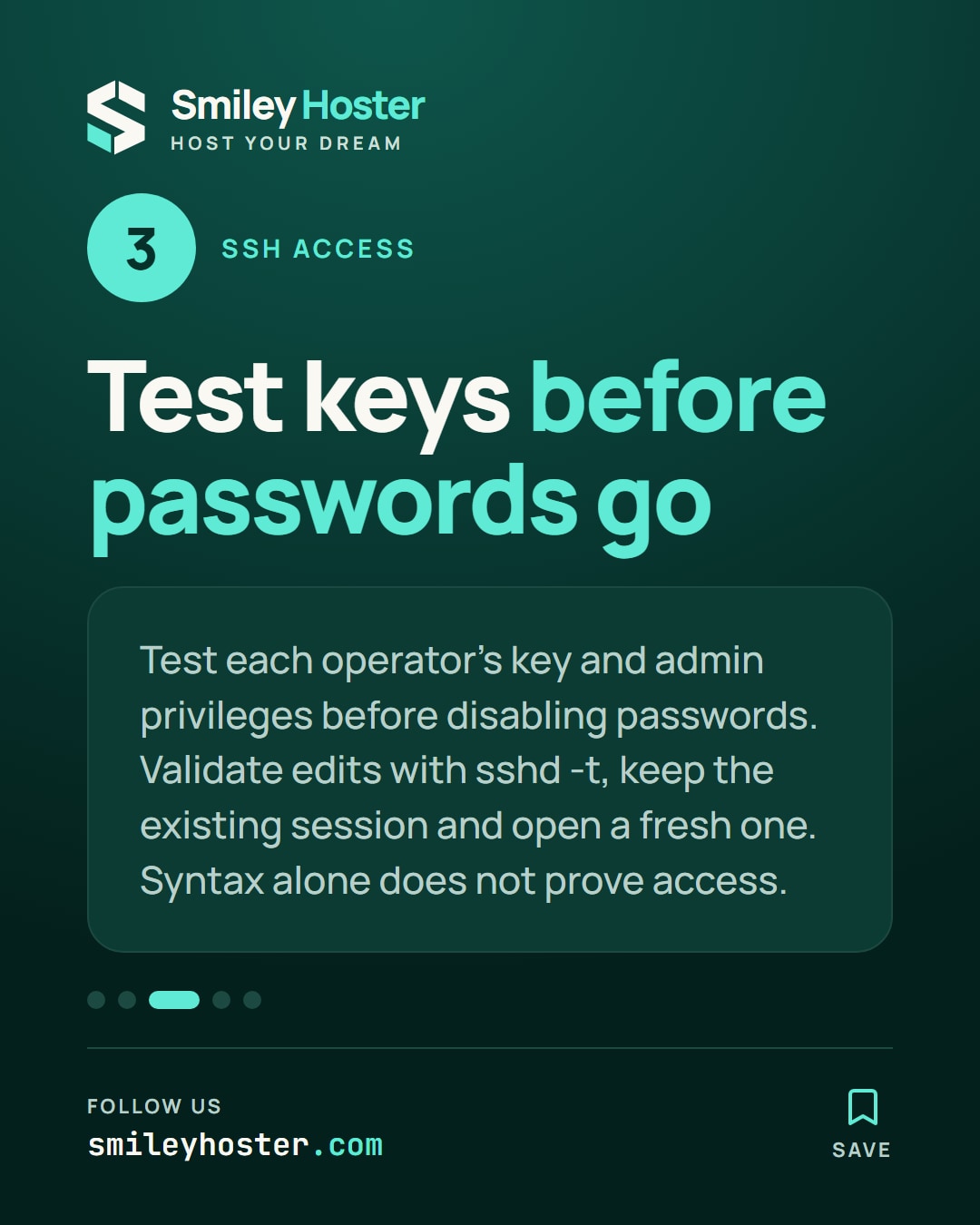
- Move SSH to individual keys. Test each operator’s key and privilege escalation in a separate session. Use Manage Shell Access to remove unnecessary shell access. Only then disable password authentication through SSH Password Authorization Tweak. Do not prohibit root login until another working administrative path exists.
- Validate SSH changes. After editing
/etc/ssh/sshd_configor included files, run:
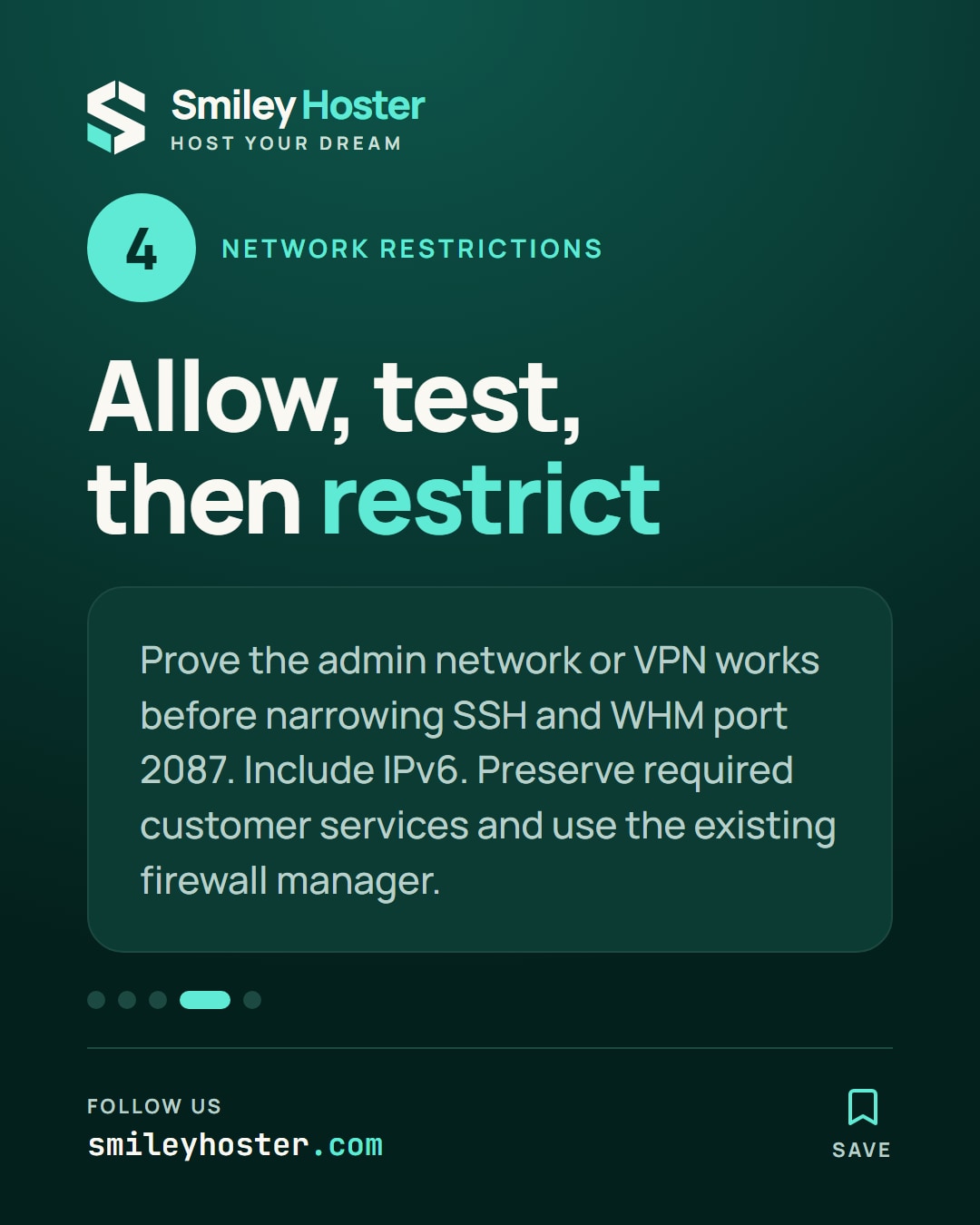
/usr/sbin/sshd -tA clean result checks syntax, not access. Apply the change using the service procedure appropriate to your OS or WHM, retain the existing connection and establish a fresh one. 5. Restrict network access. Use the firewall manager already appropriate to the installation. First allow the administrator network or VPN and prove it works; then narrow SSH and WHM port 2087. Cover IPv6 as well. Avoid a generic deny-all change that omits mail, DNS or a recovery path. 6. Make alerts and updates usable. Review WHM Contact Manager and Update Preferences. Send a test notification and verify delivery. Schedule updates and required reboots with working backups, compatibility checks and console access.
Rollback
If a network rule blocks access, revert that specific rule through the independent console. For an SSH regression, restore the relevant saved configuration and includes, run sshd -t and apply it to the service. Do not undo every protection at once.
Use the prepared recovery procedure for MFA or cPHulk rather than adding a permanent broad exception during an incident. Record the failed assumption before attempting the restriction again.
3. Final verification
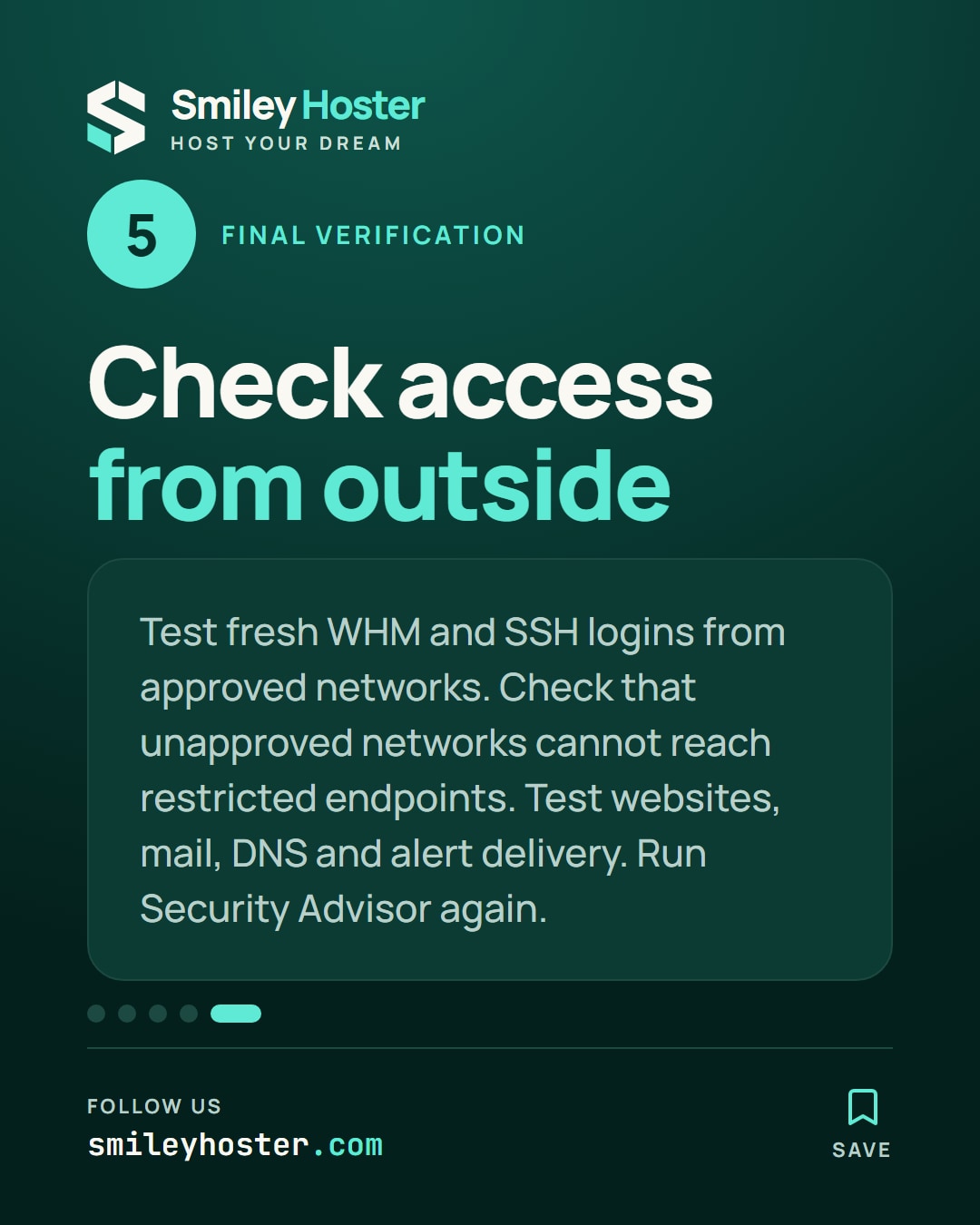
Establish new WHM and SSH sessions from the approved network. From a separate, unapproved network, confirm that restricted management endpoints are unavailable. Then test websites, mail and DNS externally to catch unintended customer impact.
Run Security Advisor again and confirm that operational alerts reach the intended administrator. A clean scan is helpful evidence, not a complete penetration test.
Common mistakes
Changing the SSH port does not replace keys or access filtering. A surviving connection does not prove that a new login works. Multiple firewall managers can overwrite one another’s rules and make recovery unpredictable.
Production recommendations
Maintain an access register with owners, permitted networks, recovery-console instructions and review dates. Remove stale accounts and rehearse recovery after network or provider changes. Keep updates routine so an urgent security correction does not become the first test of your maintenance process.
Sources: cPanel Security Advisor, cPanel SSH hardening guidance.
See it in our social posts
The key steps of this article, as a carousel. Follow us to catch the next ones.