

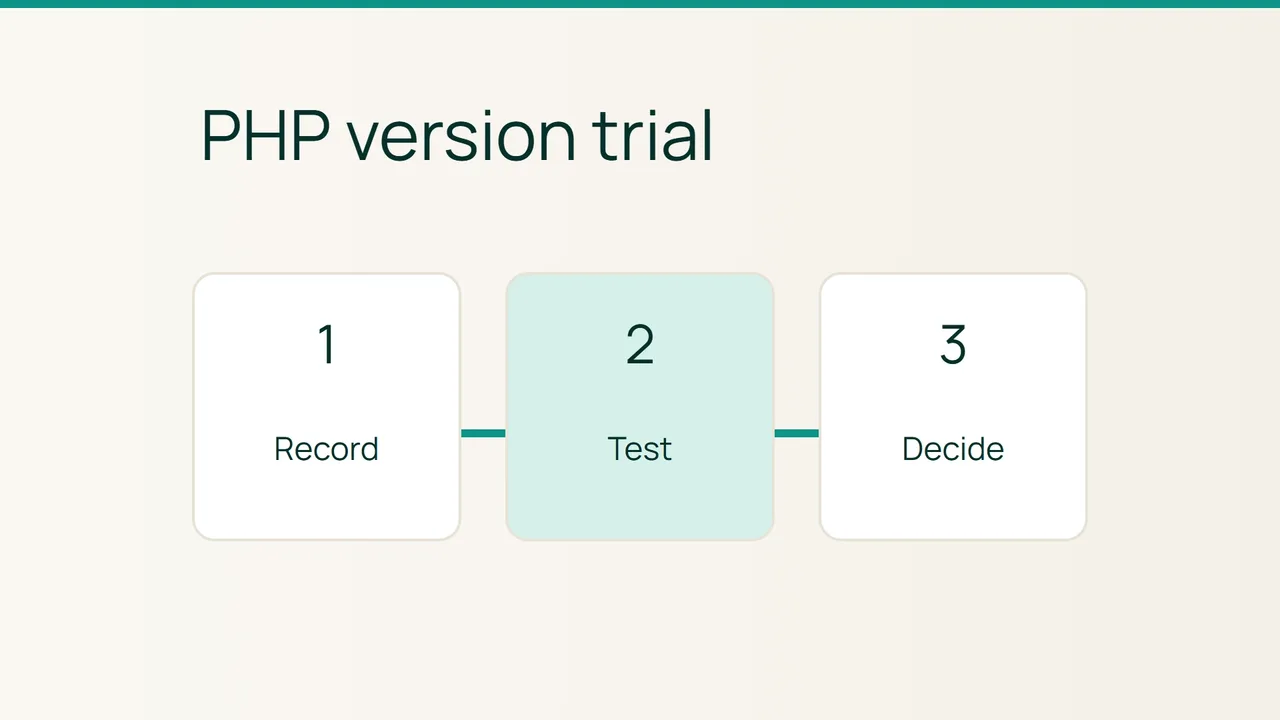
Cloudflare's Worker Previews announcement puts testing before production at the centre of a deployment workflow. For a PHP website managed through cPanel, a useful application of that idea is to try a different PHP version on a test domain before changing the public site.
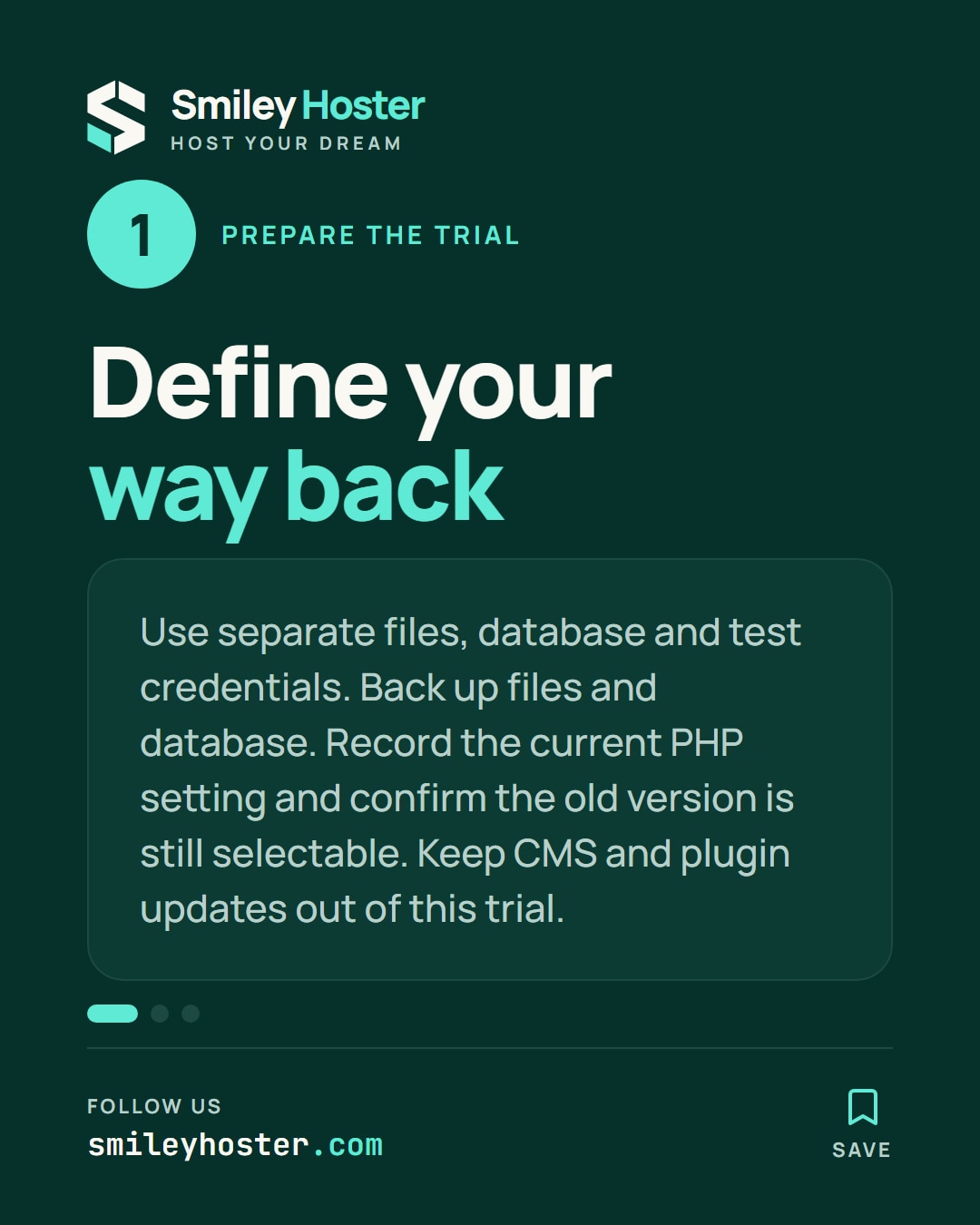
1. Define the test and the way back
Start with a test copy that has separate files, a separate database and test service credentials. Giving the production files another hostname does not create an independent environment. Write down a short acceptance route covering login, search, a form submission and an administration screen.
Open MultiPHP Manager in cPanel and record the test domain's current version, including whether it displays Inherited. Check whether the old version is still available in the selector. Administrator restrictions can prevent a return to the previous version, so settle that question before making the change.
Keep a usable backup of both files and database. Decide what would stop the trial, such as a broken form or an administration error. Avoid upgrading the CMS or plugins during the same experiment: a single change makes the result easier to interpret.
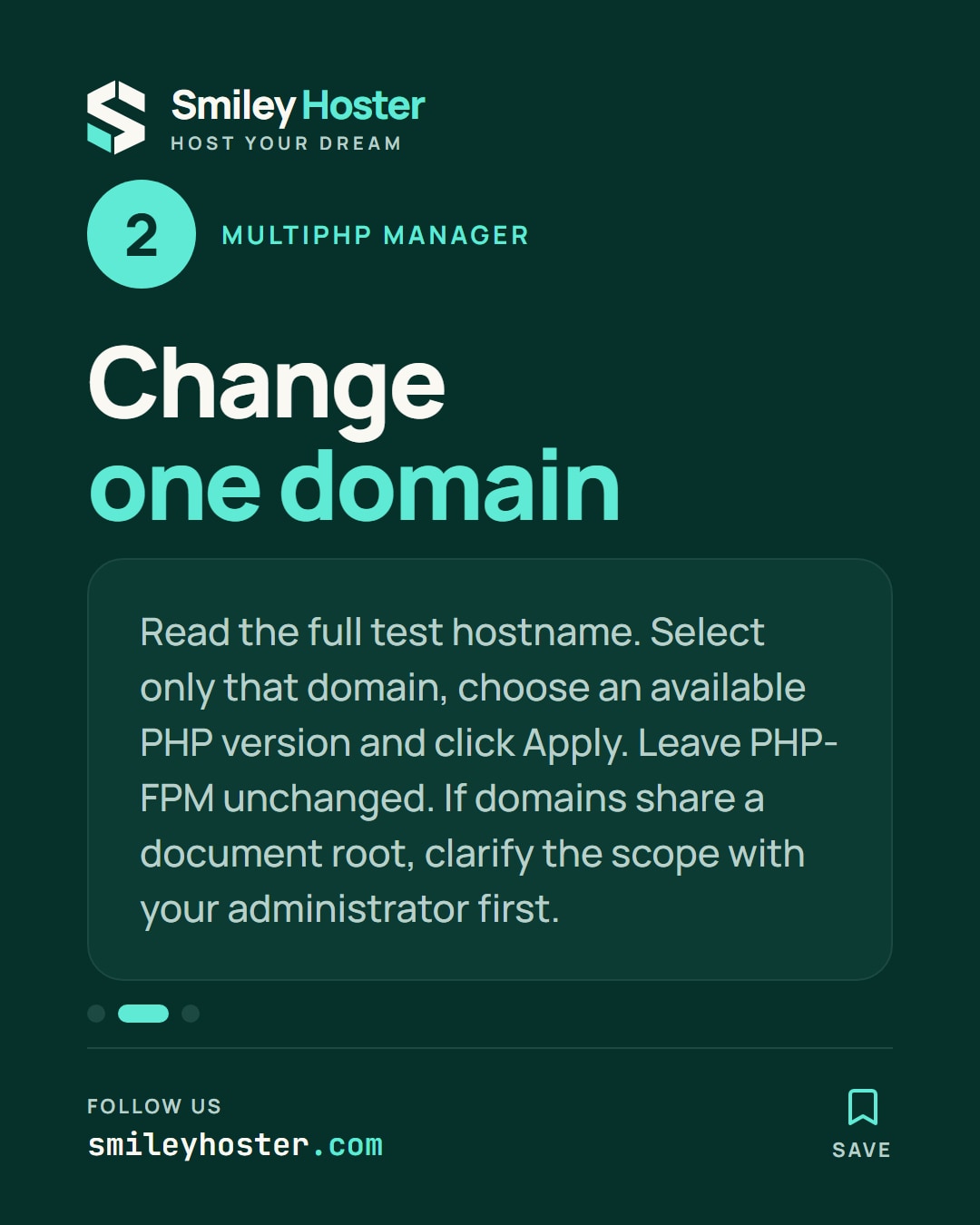
2. Change only the selected domain
Select the checkbox beside your test domain, choose the intended PHP version and click Apply. A version absent from the menu is not available to select for this account; ask the provider about availability instead of editing unrelated settings.
The inherit option follows the inherited configuration rather than pinning the explicit version for this trial. Leave PHP-FPM settings alone while testing the version change. If domains share a document root, clarify the scope of related settings with the administrator before proceeding.
The panel's practical advantage is that you can see the selected domain and apply its setting in one place. It still requires careful selection. Read the complete hostname before applying, particularly when staging and production names differ by only a few characters.
3. Record the result before promotion
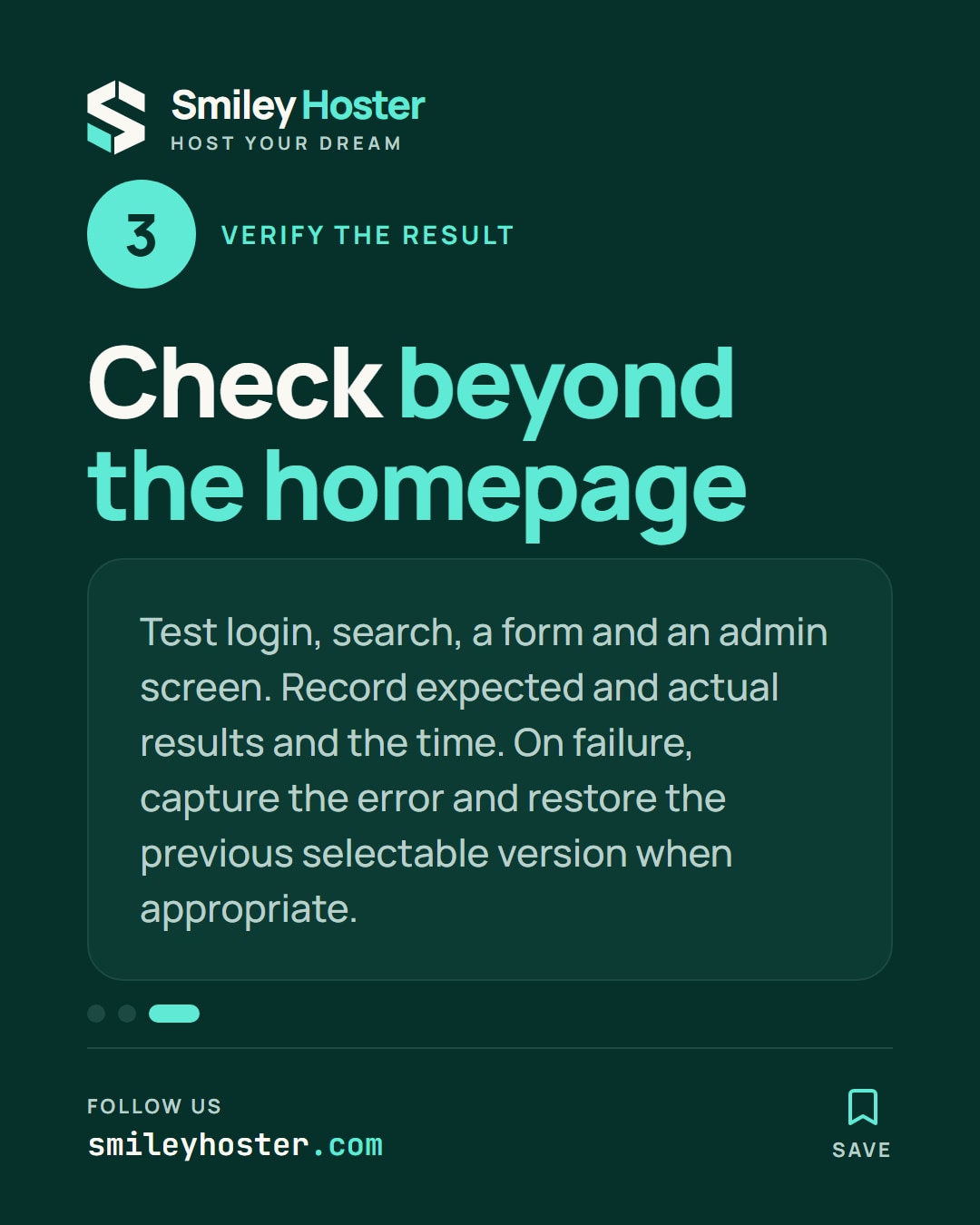
Run the acceptance route against the test hostname. A successful home page does not demonstrate that file downloads, logged-in pages or form handling work. For each operation, record the expected result, actual result and time.
On failure, capture the error message and the action that triggered it. Restore the previous selectable version when appropriate, then give the evidence to the application maintainer. Skipping the failing screen does not turn the trial into a pass.
Once the test succeeds, schedule the production change as a separate action. Repeat the same checks immediately afterwards and keep the backup and configuration notes until normal use confirms the outcome. This leaves you with an explicit decision record rather than a PHP setting changed without a verified result.
Sources: Cloudflare, cPanel.
See it in our social posts
The key steps of this article, as a carousel. Follow us to catch the next ones.