

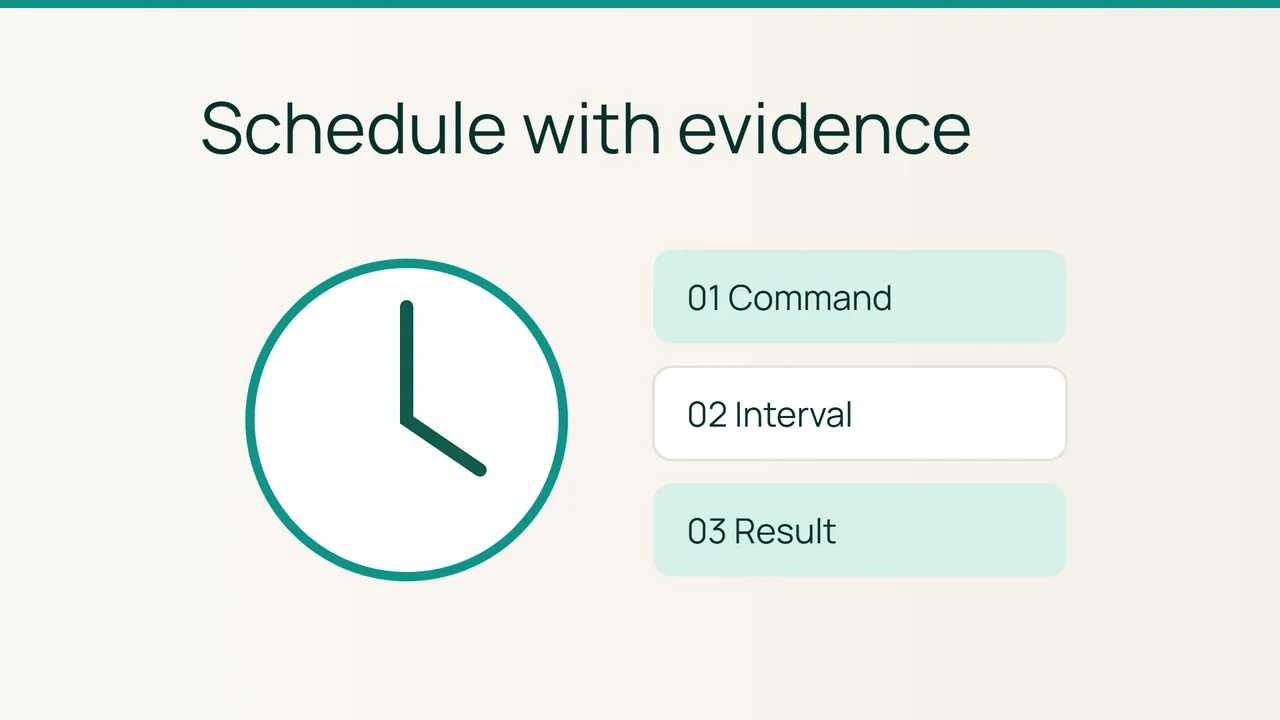
Vultr's Cycle.io announcement brings assistant-driven infrastructure operations into view. A simpler automation on cPanel needs equally clear boundaries: a cron job should run a known command on a suitable schedule and leave a result you can check.
1. Identify one operation and its evidence
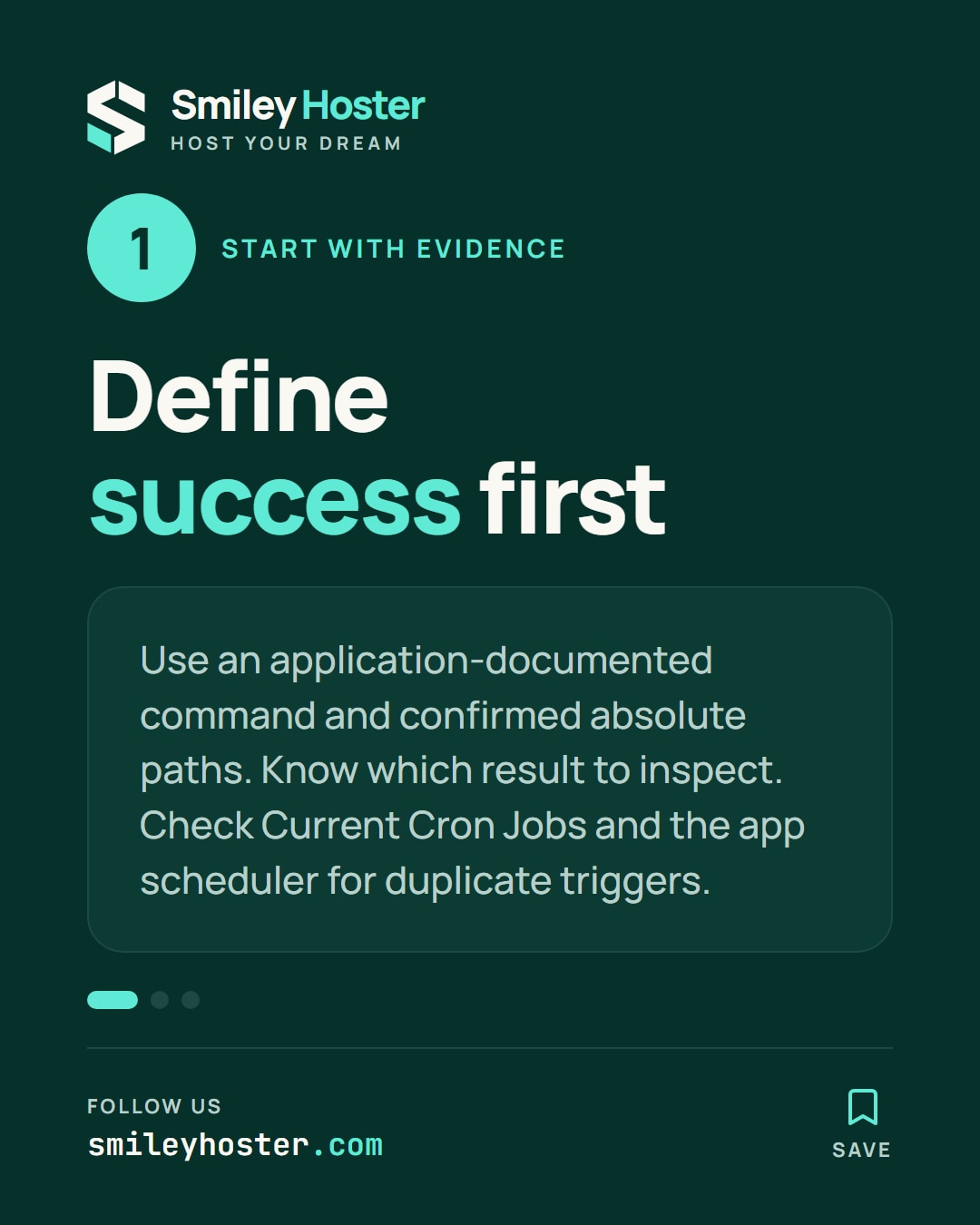
Start with a command documented by your application, such as generating a test report. Avoid making the first trial a deletion, a billing run or a message to real customers. Write down what successful execution should produce and where you will inspect it.
Obtain the absolute executable and script paths from the provider or application maintainer. Do not assume the browser's execution environment matches a scheduled command. If the script needs an interpreter, use the path confirmed for your account.
Open Cron Jobs and inspect Current Cron Jobs before adding anything. An existing entry may already perform the work. Check the application's own scheduler as well, so that two different triggers do not run the same operation. Keep a non-secret record of the starting configuration.
2. Set a schedule you can observe
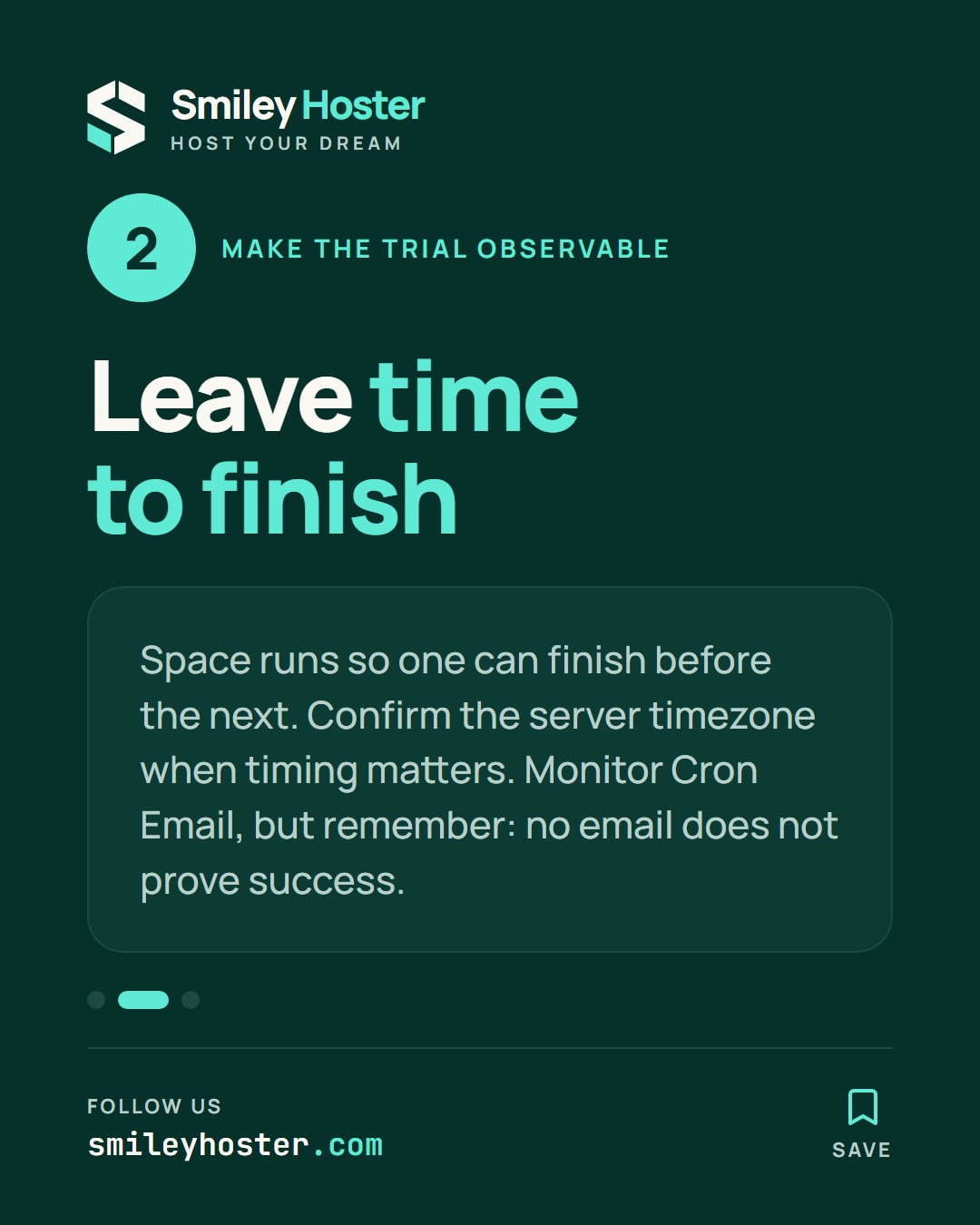
Choose an interval through Common Settings or fill in the time fields, then enter the validated command. Allow enough time for one execution to finish before the next begins. Increasing frequency does not make an already-running task finish sooner and can create overlapping executions.
Confirm the server's timezone with the provider when the exact clock time matters. For the first trial, pick a period when you can watch for the expected result. Save the entry with Add New Cron Job.
Set a monitored address in Cron Email to receive output mailed by the system. Keep useful command output available during troubleshooting rather than discarding everything. However, no email is not proof of success: an application-level check must establish whether the intended work happened.
3. Check the effect, then keep or remove the job
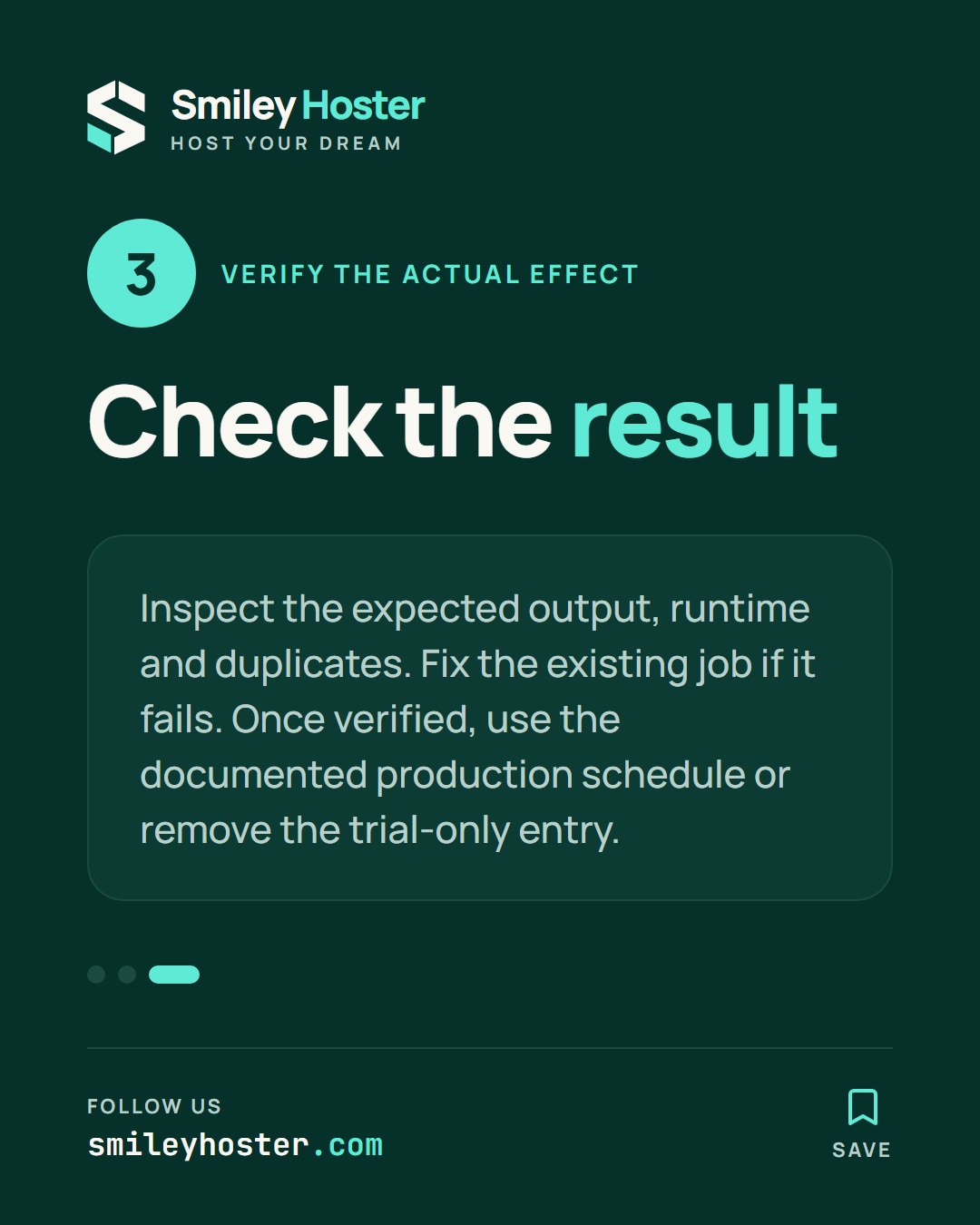
After the scheduled time, look for the report or other test result. Record the start, the finish when known, and whether duplicates appeared. If runtime approaches the scheduling interval, space executions out and ask the maintainer how concurrent runs should be prevented.
For a failure, retain the useful error message and redact private information before sharing it. Do not add a second entry in an attempt to repair the first. Correct the identified job so there is one clear trigger to examine.
Once the behaviour is understood, use the application's documented production schedule. Remove a trial-only entry after checking its identity. Keep its owner, purpose and failure check in your operational notes so that a silent stop is detectable later.

See it in our social posts
The key steps of this article, as a carousel. Follow us to catch the next ones.