

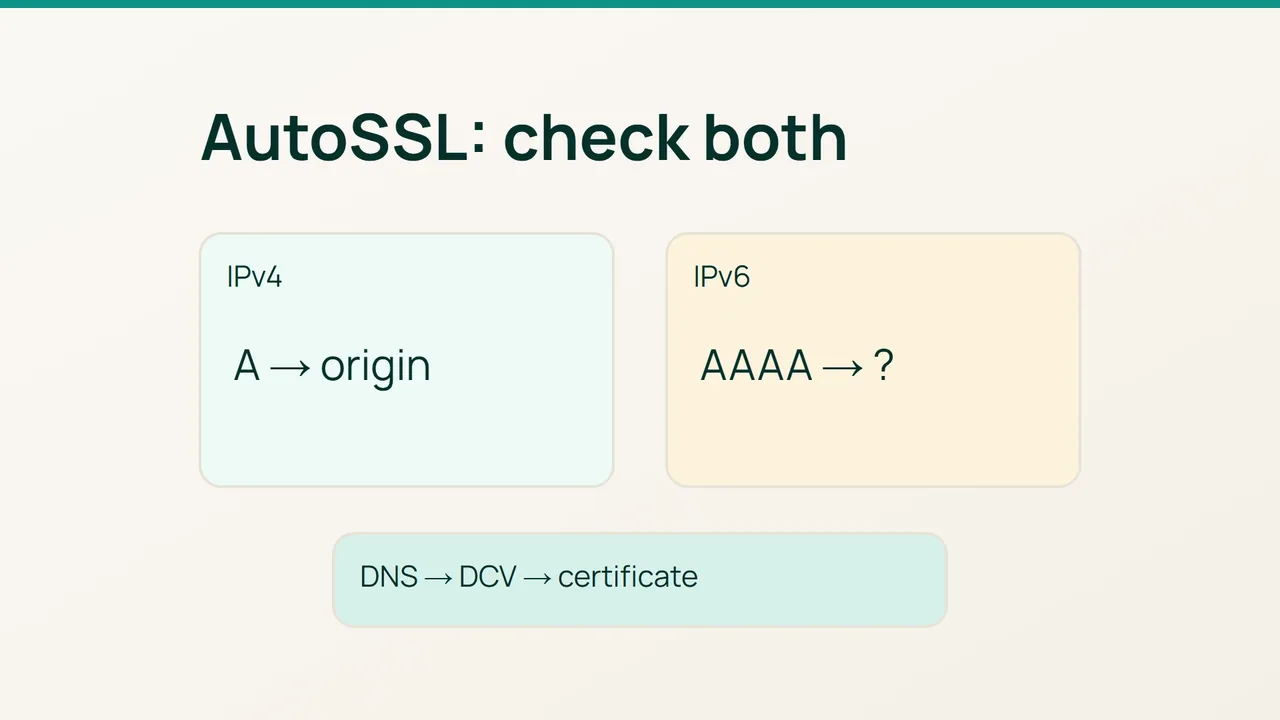
Let’s Encrypt’s IPv6 guidance highlights an easy-to-miss cause of validation failure: an obsolete AAAA record. For a cPanel/WHM incident, investigate the exact hostname in the AutoSSL log rather than relying on a successful homepage visit from your own connection.
1. Classify the logged failure
Open Manage AutoSSL in WHM and select the relevant run under Logs. Record the hosting account, hostname, DCV method and complete failure message. Administrators can also consult files in /var/cpanel/logs/autossl.
Confirm that a provider is enabled and the account has AutoSSL access. A name that does not resolve, a rejected validation request and an incorrectly served certificate belong to different diagnostic paths.
Create a small working record for each failing name: intended address, observed error and proposed correction. Keep any still-valid certificate installed while investigating; deleting it does not repair DNS or validation routing.
2. Compare both network paths
Use the failing hostname in place of example.com:
dig +short A example.comdig +short AAAA example.comdig +short CAA example.comcurl -4I http://example.com/curl -6I http://example.com/These HTTP requests inspect general reachability, not the DCV challenge itself. The IPv6 test also depends on your test machine having working IPv6 connectivity. Compare answers with the intended server addresses and query the authoritative DNS when cached responses disagree.
For a dual-stack name, Let’s Encrypt initially prefers IPv6. A wrong challenge response from an old IPv6 server does not automatically cause an IPv4 retry. Correct the AAAA record, or remove it if that hostname should no longer offer IPv6.
If HTTP validation fails, investigate the exact challenge path reported by the log. Authentication, redirects, a WAF or the wrong document root can interfere. Scope any exception to the required validation mechanism. For a CAA error, check the effective issuer authorization, including inherited policy, rather than deleting all restrictions.
3. Confirm automatic operation
Once the correction is visible, start a targeted AutoSSL check in the interface. Read the new result before attempting another run; repeated unchanged requests offer little diagnostic value.
Inspect the certificate actually presented for each hostname, including its validity dates and chain. With a TLS-terminating proxy, distinguish the public edge certificate from the certificate installed at the origin.
Configure suitable AutoSSL failure notifications and confirm who receives them. Retain the original error and the successful check in the incident record, then monitor the next automatic execution. Manual issuance proves the immediate repair; observing the scheduled workflow provides evidence that renewal remains operational.
Sources: cPanel — Manage AutoSSL, Let’s Encrypt — IPv6.