

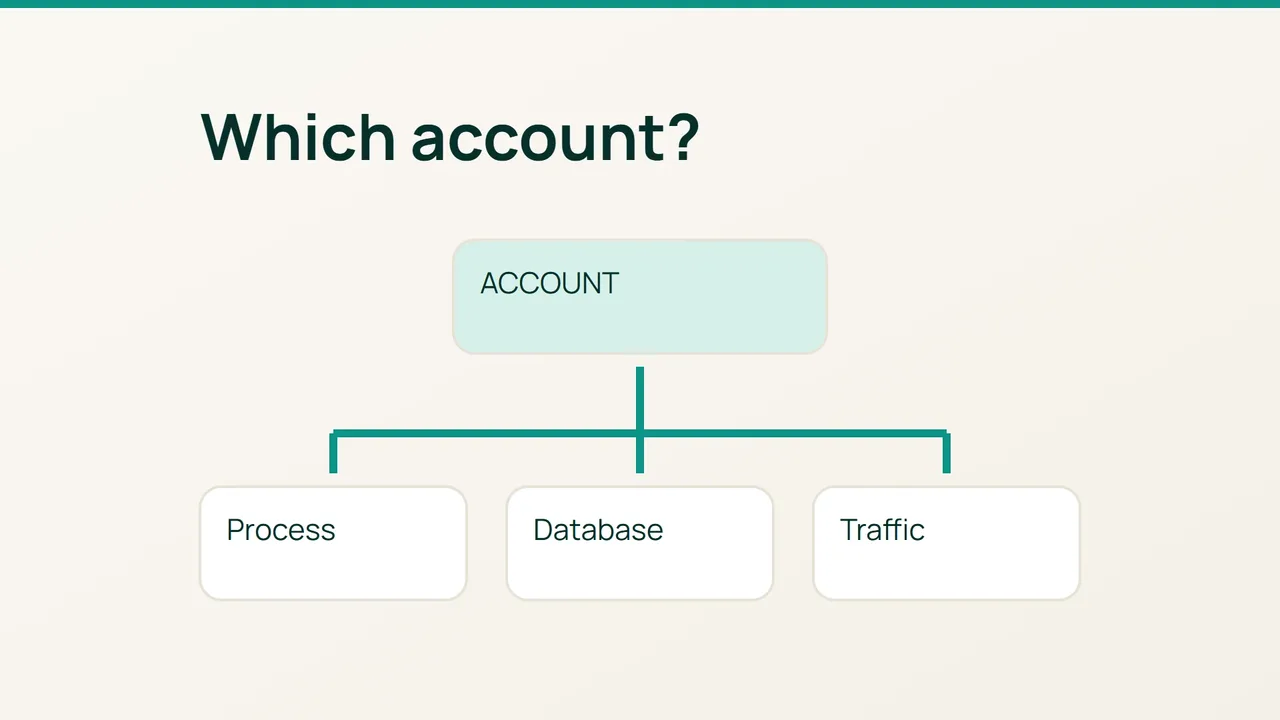
WHM’s Daily Process Log is a useful shortlist of accounts to investigate. Turning that shortlist into a fair diagnosis requires a timeline and a link to real work; high usage by itself is not evidence of abuse.
1. Build a dated account record
With WHM administrative privileges, select the incident day in Daily Process Log. Treat daily averages as context because a brief disruptive event can disappear inside an otherwise ordinary day.
While the problem is active, inspect the suspected account. Replace clienta with its actual operating-system username:
date -Isps -u clienta -o pid,ppid,pcpu,pmem,etime,argscrontab -u clienta -lRecord process IDs, parents, elapsed time and command names. Redact arguments before sharing them: they may include private application information.
Several PHP workers owned by one account provide a concrete lead. A shared web-server process running as nobody does not offer the same attribution. For storage-heavy activity, correlate those IDs with an available iotop sample rather than expecting CPU rankings to reveal every bottleneck.
2. Connect the process to a workload
Open Show Database Processes in current WHM versions. Record the SQL user, database and statement during the incident, then confirm which hosting account owns that database.
A database login and a Linux username are different identities. Likewise, the common MariaDB server process serves multiple customers. Do not blame one account because the database daemon is busy or because it has idle connections.
Compare the incident window with domain access logs and scheduled jobs. Use that evidence to distinguish several possibilities:
- Expected landing pages and normal customer journeys support legitimate demand.
- Repeated expensive endpoints suggest automated traffic, but a claimed User-Agent is not proof of identity.
- Overlapping scheduled executions suggest a job taking longer than its schedule allows.
- Unrecognized scripts or scheduled commands warrant a security investigation.
Ask the account owner whether a deployment, import or campaign started then. That context can explain an unfamiliar workload without assuming compromise.
3. Apply and verify a targeted change
Address the demonstrated mechanism: reschedule an export, prevent overlapping jobs, fix database work or limit a costly endpoint after checking legitimate uses. Document how to reverse the intervention.
If the evidence points toward compromise, preserve relevant logs and files before cleanup. Isolate the affected account according to your incident procedure and coordinate credential changes with its owner.
Finally, compare equivalent traffic periods after the change. A useful incident finding names the account, workload, constrained resource and observed improvement. A screenshot of a username at the top of a ranking cannot establish that it caused every slowdown on the server.
Sources: cPanel — Daily Process Log, cPanel — database processes.