

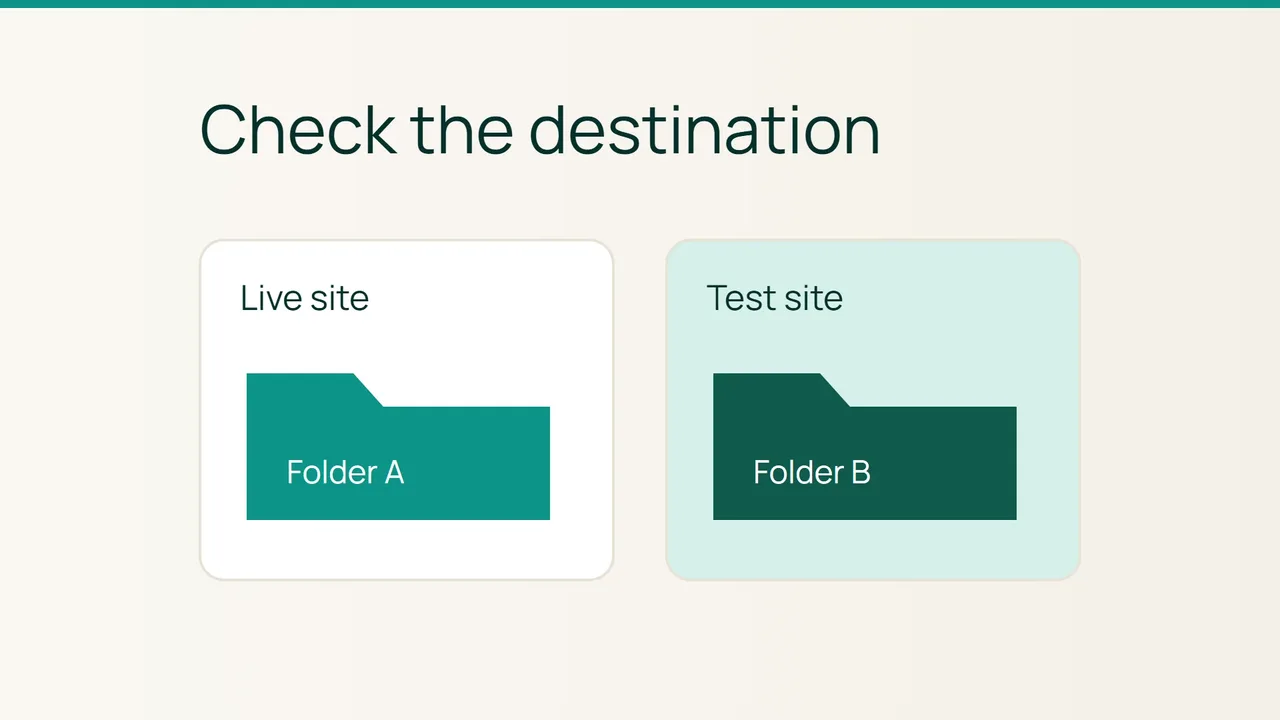
Cloudflare's Worker Previews announcement highlights the value of keeping test changes separate from a live website. Before uploading a release through cPanel, establish which directory each hostname actually serves: different names can still point to the same files.
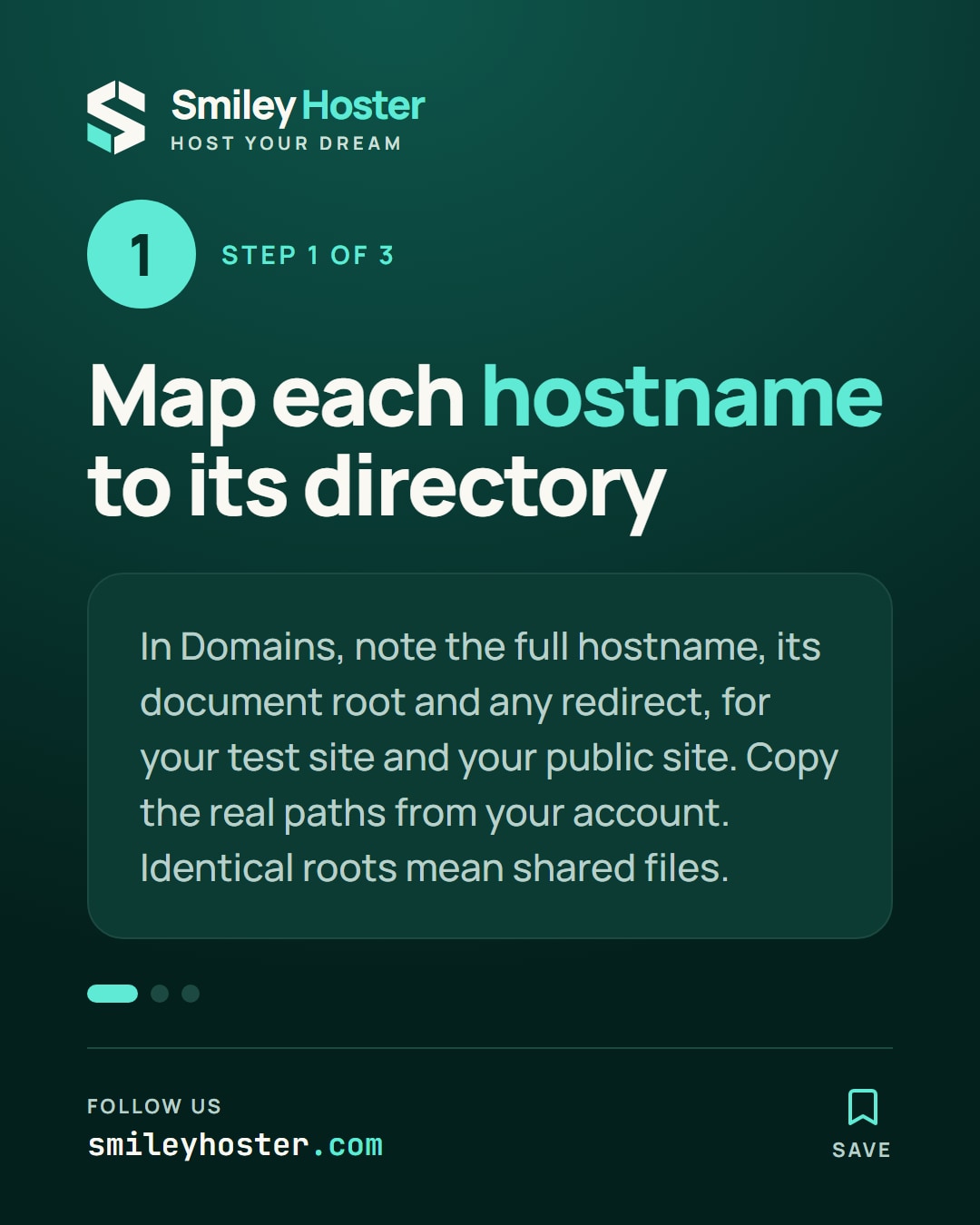
1. Build a small domain-to-directory map
Open Domains and find the hostname you intend to update. Record its full name and Document Root, then do the same for the production hostname and any existing test domains. Also note any redirect destination displayed in the table.
Use three columns in your deployment notes: hostname, directory and intended purpose. A test site and a public site should have an arrangement you understand before any files move. Copy actual paths from your account rather than assuming the folder names used in a tutorial apply to your hosting.
Treat identical document roots as shared files. Pause the upload if the relationship is unexpected. This is where the panel helps: the list makes a potentially confusing arrangement visible before an upload replaces files that visitors are already using.
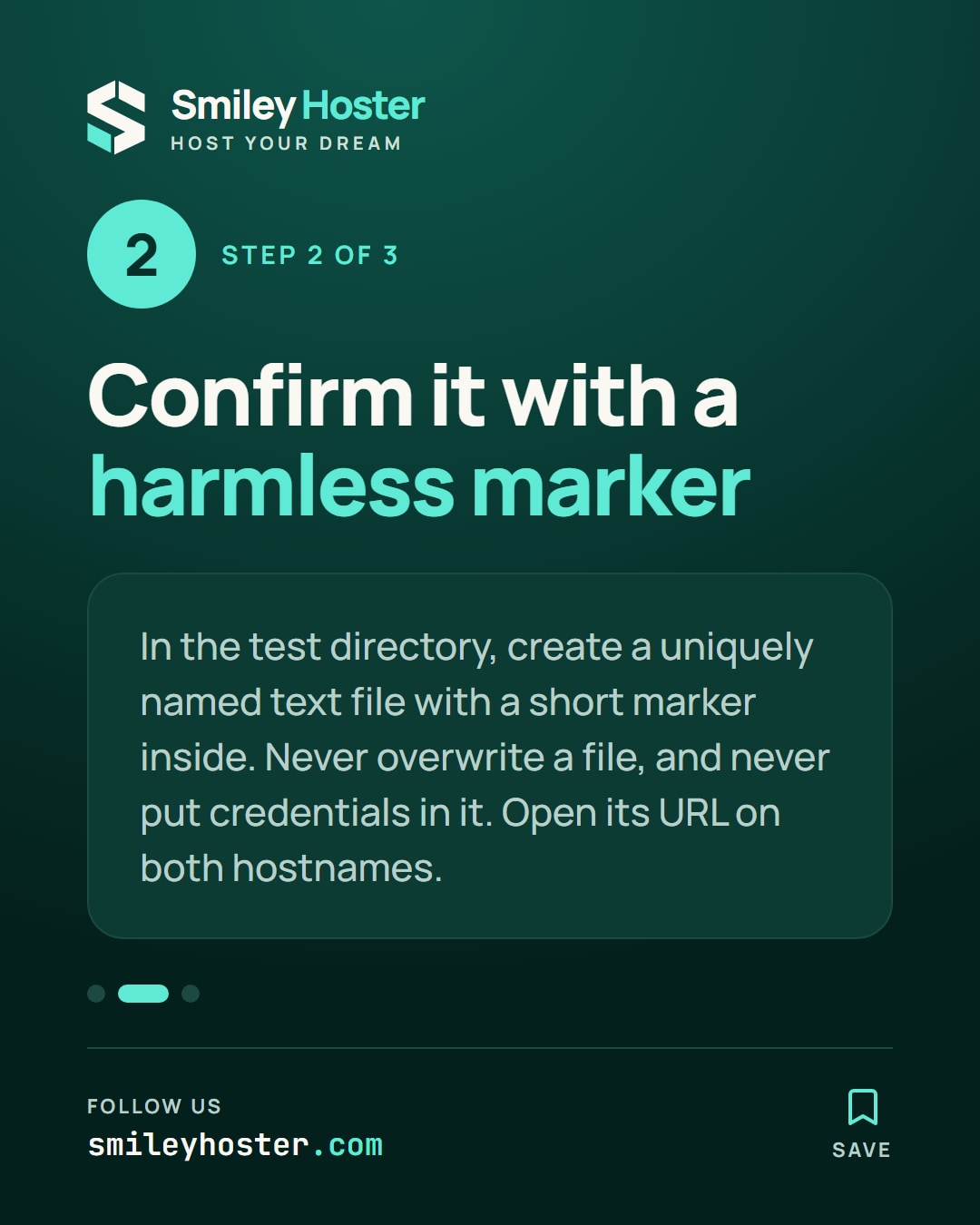
2. Check the mapping with a harmless marker
Click the document-root path to open File Manager when that feature is enabled. Check the displayed location before creating anything. Recognising a folder name is not enough when several similarly named directories exist.
Inside the confirmed test directory, create a uniquely named text file such as directory-check-test.txt. Put only test-directory-check inside it. Never overwrite an existing file, and do not include credentials, account details or application settings.
Visit the file's URL on the test hostname, then try the equivalent URL on the public hostname. Your expected result is the marker on the test site and no marker on the public site. Redirects, caching and application routing can affect what you see; an unexpected response is a reason to investigate, not conclusive proof about the underlying filesystem.
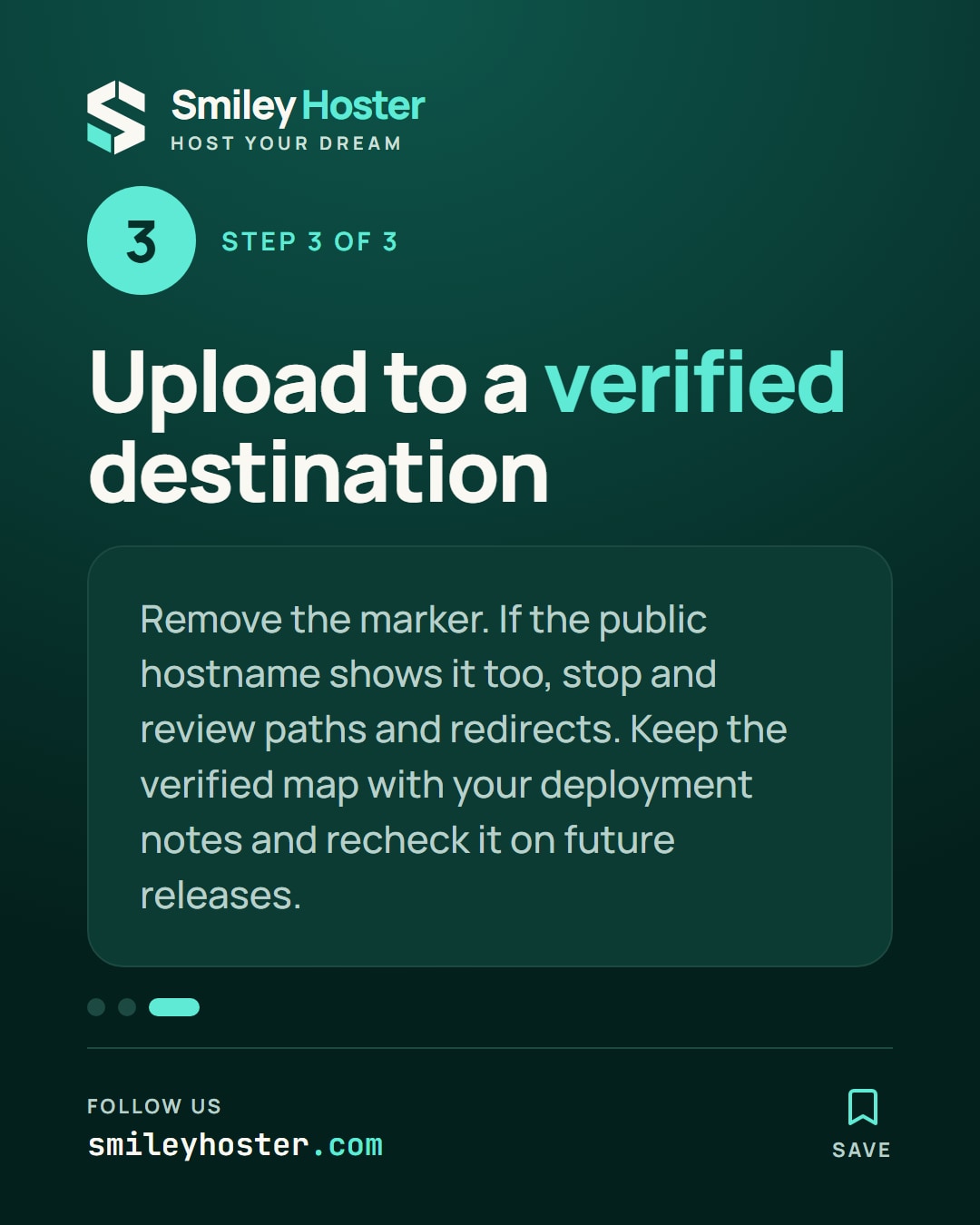
3. Give the upload a verified destination
Remove the marker after the check. If the public hostname also exposes it, stop and review the paths and redirects before uploading the release. Do not casually change a live domain's document root to make the test pass.
Separate directories also do not prove that databases or external services are separate. Review the test application's configuration before executing it, and keep the verified domain map alongside the deployment procedure.
The outcome should be a concrete destination the person uploading can repeat back: full hostname, directory and purpose. Recheck that mapping on future releases, especially after account reorganisation. A short, repeatable check is more useful than relying on the folder name everyone remembers.
Sources: Cloudflare, cPanel.


See it in our social posts
The key steps of this article, as a carousel. Follow us to catch the next ones.