

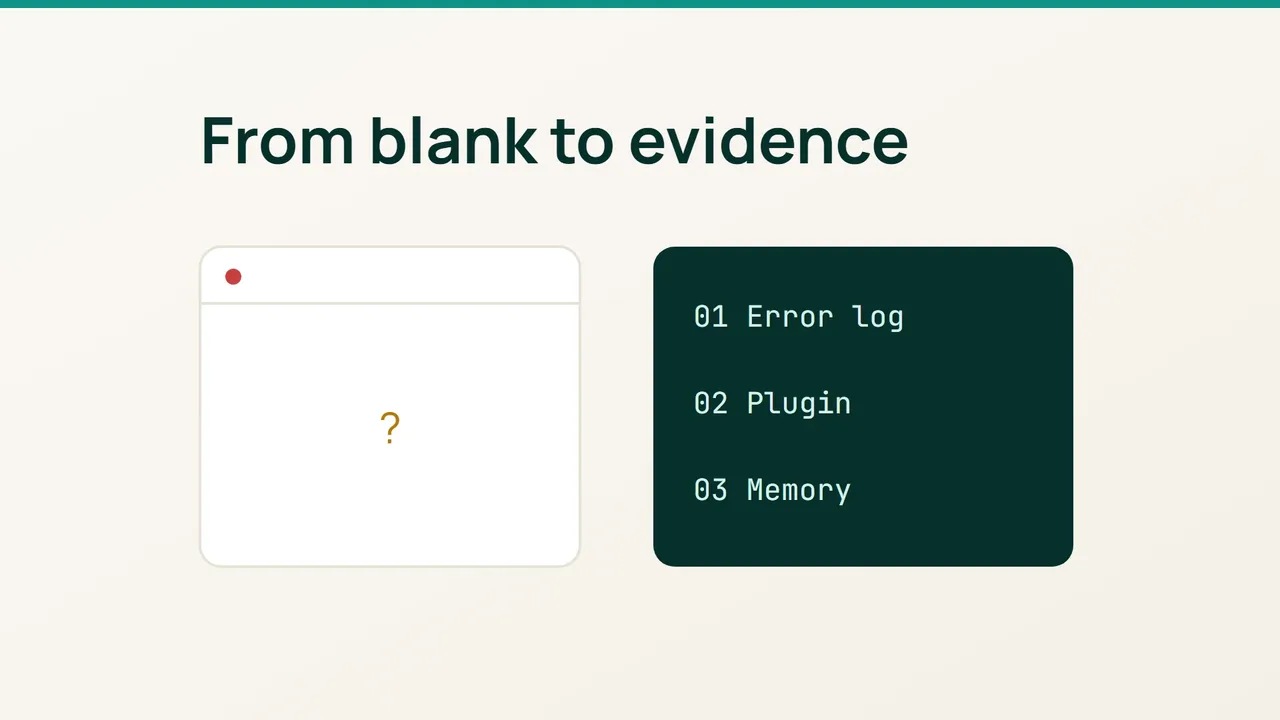
A blank WordPress page is a symptom, not a diagnosis. WordPress debugging guidance suggests a more useful sequence than changing settings at random: collect an error privately, isolate the component involved, then verify the original action.
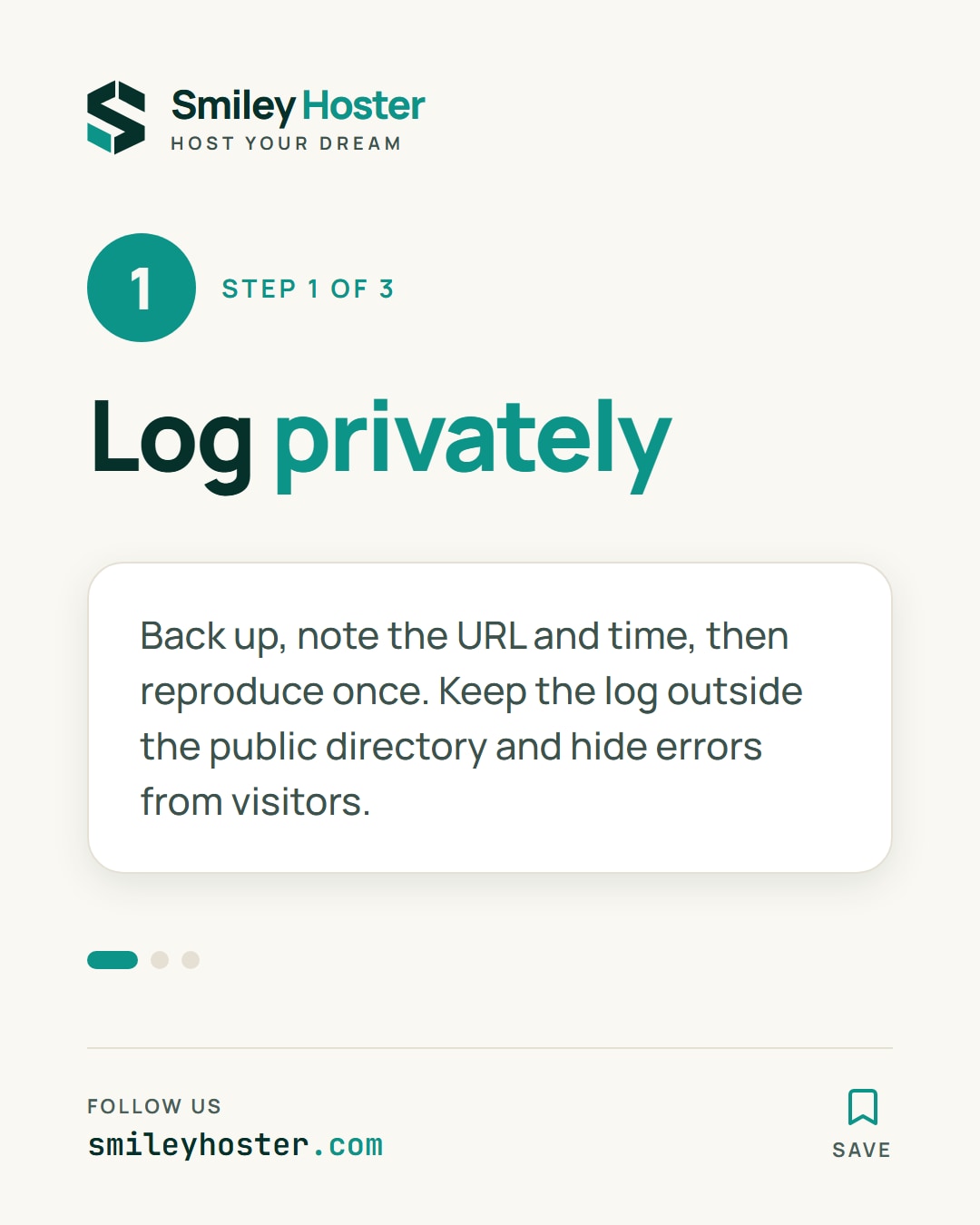
1. Capture one failure privately
Write down the affected URL and time. Check whether the dashboard and another public page also fail. Back up the files and database, and reproduce on staging where possible.
Edit existing definitions in wp-config.php rather than adding duplicates. Before the end-of-configuration comment, configure logging to a private absolute path:
define( 'WP_DEBUG', true );define( 'WP_DEBUG_LOG', '/PRIVATE_PATH/wp-debug.log' );define( 'WP_DEBUG_DISPLAY', false );@ini_set( 'display_errors', 0 );Replace the example path with a real location outside the public directory. Its parent directory must exist and PHP must be able to write there.
Reproduce the failure once and inspect the fatal error at that timestamp. Keep the log private: paths, request details and personal data may appear in it. If nothing is recorded, check the destination permissions and the hosting PHP error log. A failure before WordPress starts may not reach its logger.
Prefer staging for this work. If the incident only reproduces live, keep the diagnostic period brief and avoid displaying error details to visitors.
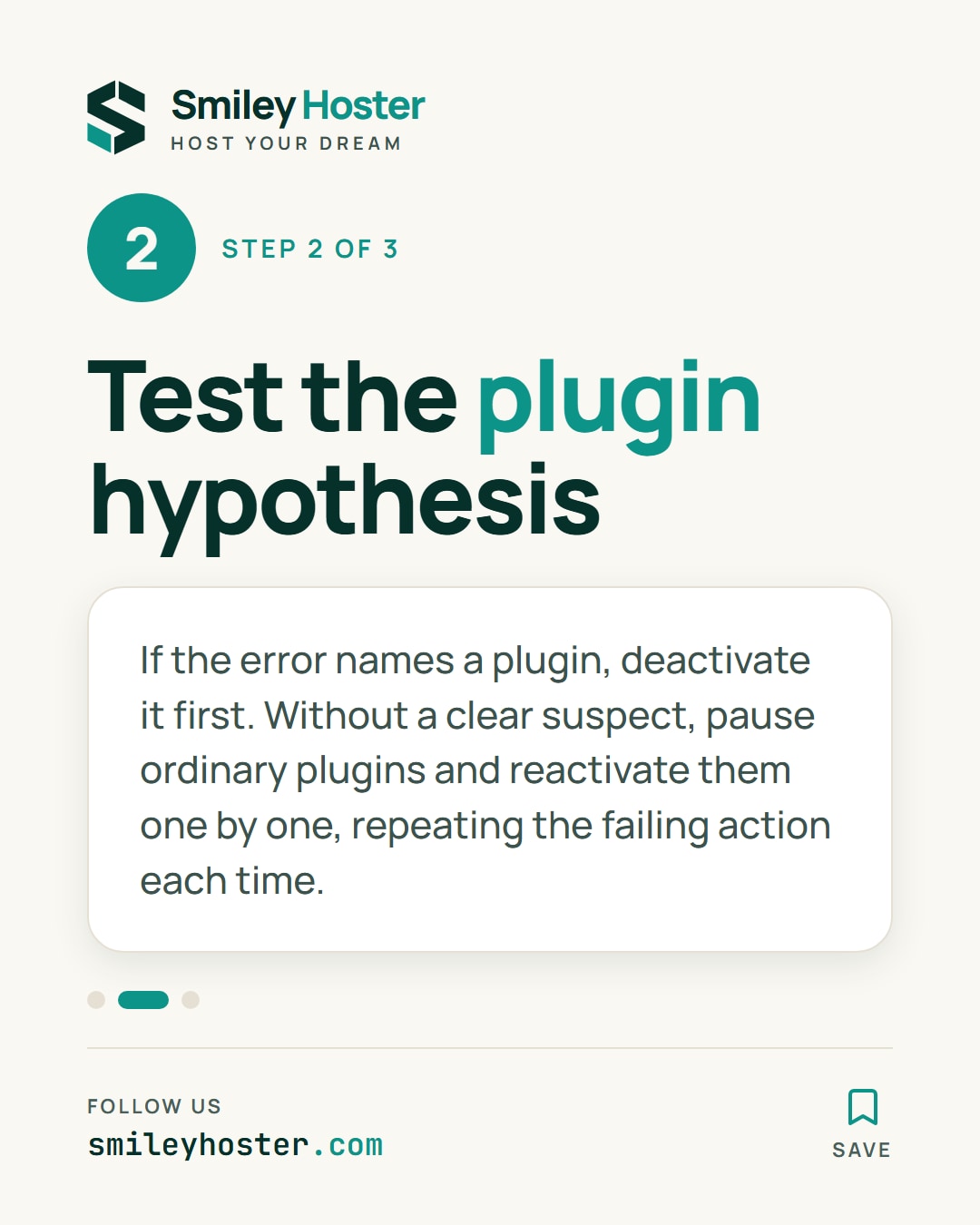
2. Test the plugin hypothesis
When the error names a plugin, deactivate that plugin first. If the dashboard is unavailable, use SFTP or the hosting file manager to rename only its directory inside wp-content/plugins. Retain its contents and record the original name.
Without a clear suspect, temporarily rename the whole plugins directory to plugins-paused. If administration becomes accessible, visit the plugins screen before restoring the original directory name. Reactivate plugins individually and repeat the failing action after each.
Arrange a maintenance window because disabling plugins can affect payments, forms and security controls. Must-use plugins and some cache components need separate investigation.
If ordinary plugins are not responsible, try an already installed, compatible WordPress default theme on staging. Avoid changing the theme and PHP version together; you would lose the ability to identify which change mattered.
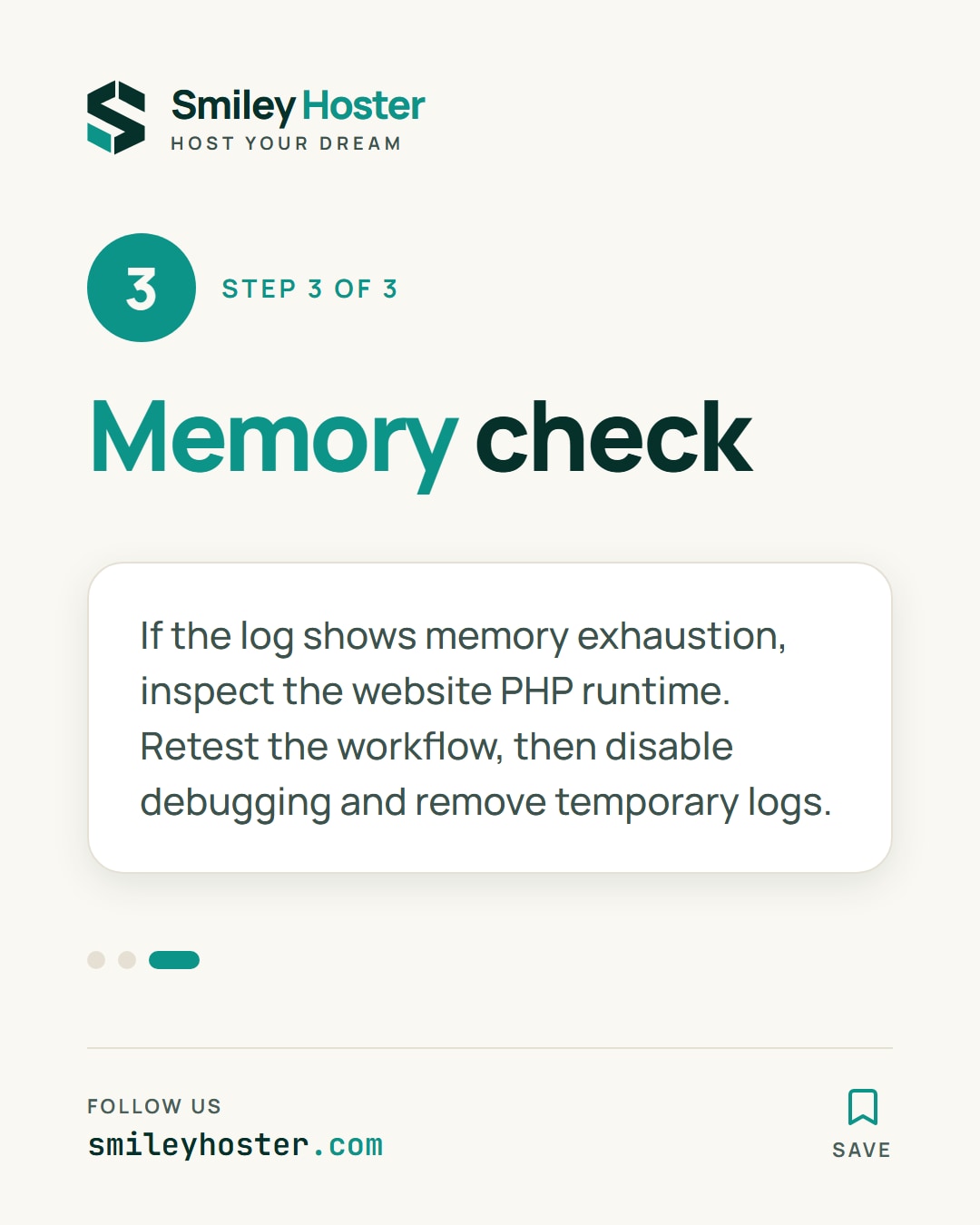
3. Check memory and remove diagnostic settings
An Allowed memory size exhausted entry calls for a memory check. Record the limit and operation involved. Inspect the memory_limit for the PHP runtime serving the website in your hosting panel; terminal PHP may use a different configuration.
Only test a temporary increase within your hosting resources. Record the previous value and repeat the same action. Repeated exhaustion may indicate faulty behaviour that more memory merely postpones.
Finally, verify the homepage, dashboard and the original failing workflow. Set WP_DEBUG back to false, remove temporary logging settings and remove the server log after retaining any necessary private incident evidence.
Avoid quoted 'false' values, permanent production debugging and declaring success after testing only the homepage.
Sources: WordPress debugging, WordPress common errors.
See it in our social posts
The key steps of this article, as a carousel. Follow us to catch the next ones.