

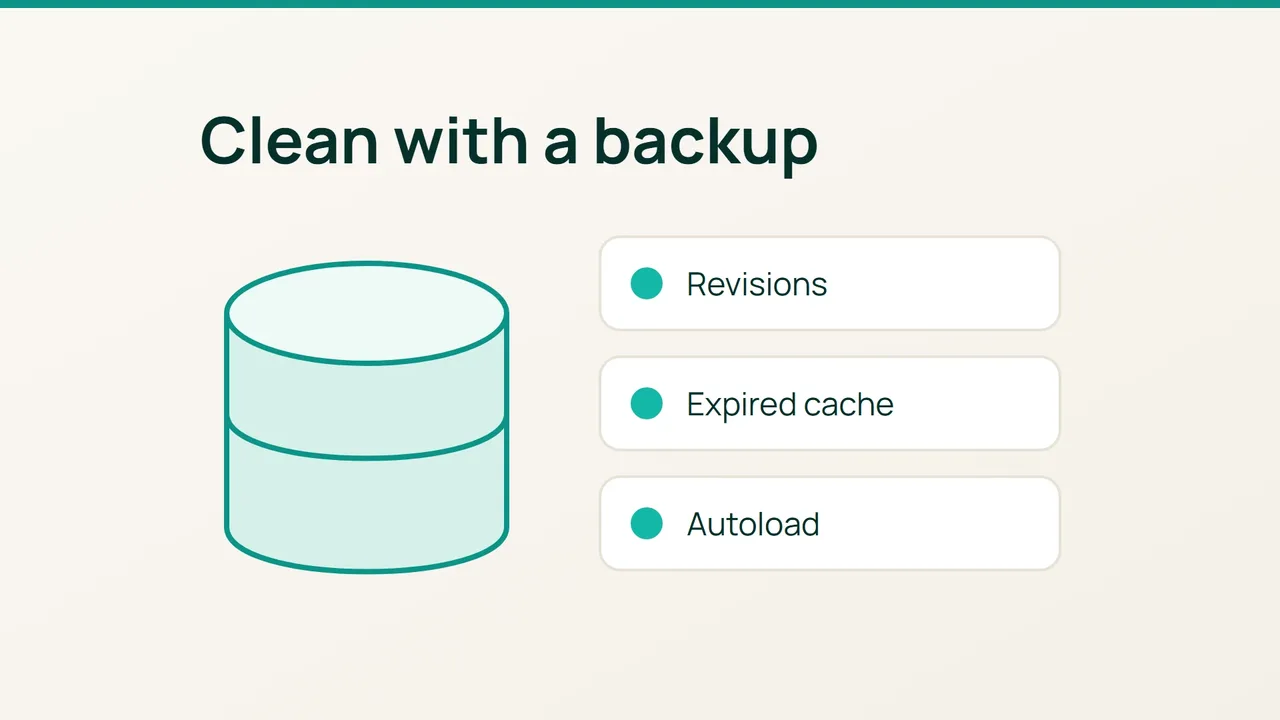
A growing WordPress database needs an inventory before a cleanup. WP-CLI's option and transient commands help separate automatically loaded settings from temporary data, so you can make a small change and check its effect.
1. Make the starting point recoverable
This workflow assumes a single site with WP-CLI available. Save a private database backup and test restoring it to a staging copy. Record table sizes from your database panel, the date and the site's important functions.
From the WordPress directory, measure autoloaded options:
wp option list --autoload=on --format=total_bytesList their names and sizes without printing their contents:
wp option list --autoload=on --fields=option_name,size_bytes --format=csvSort that output by size in your preferred viewer. A large option is a candidate for investigation, not automatic deletion. Identify the plugin or theme responsible for it.
Keep these results as your baseline. If a command flag is unsupported, check the installed WP-CLI version and local help rather than substituting an improvised SQL deletion.
2. Work through one data category at a time
On staging, begin with expired transients:
wp transient delete --expiredRecord the reported result. Avoid replacing the expiry filter with --all out of habit, since that also removes still-valid cached entries. An external object cache can mean the database does not contain the full cache inventory.
Next, decide which posts can lose their older revision history. In a cleanup tool you already use, select revisions only and review its preview. Keep drafts, orders and other business records out of the operation. If the tool cannot show a clear scope, postpone that deletion.
To limit subsequent accumulation, a sample editorial policy in wp-config.php, before the end of configuration, is:
define( 'WP_POST_REVISIONS', 8 );Eight is an example retention choice, not a universal optimum. Changing this setting is not an immediate cleanup of all existing history.
For autoloaded options, follow the owning component's documented cleanup procedure. Do not erase an option merely because its name looks obsolete, and do not disable autoload globally.
3. Validate behaviour before repeating live
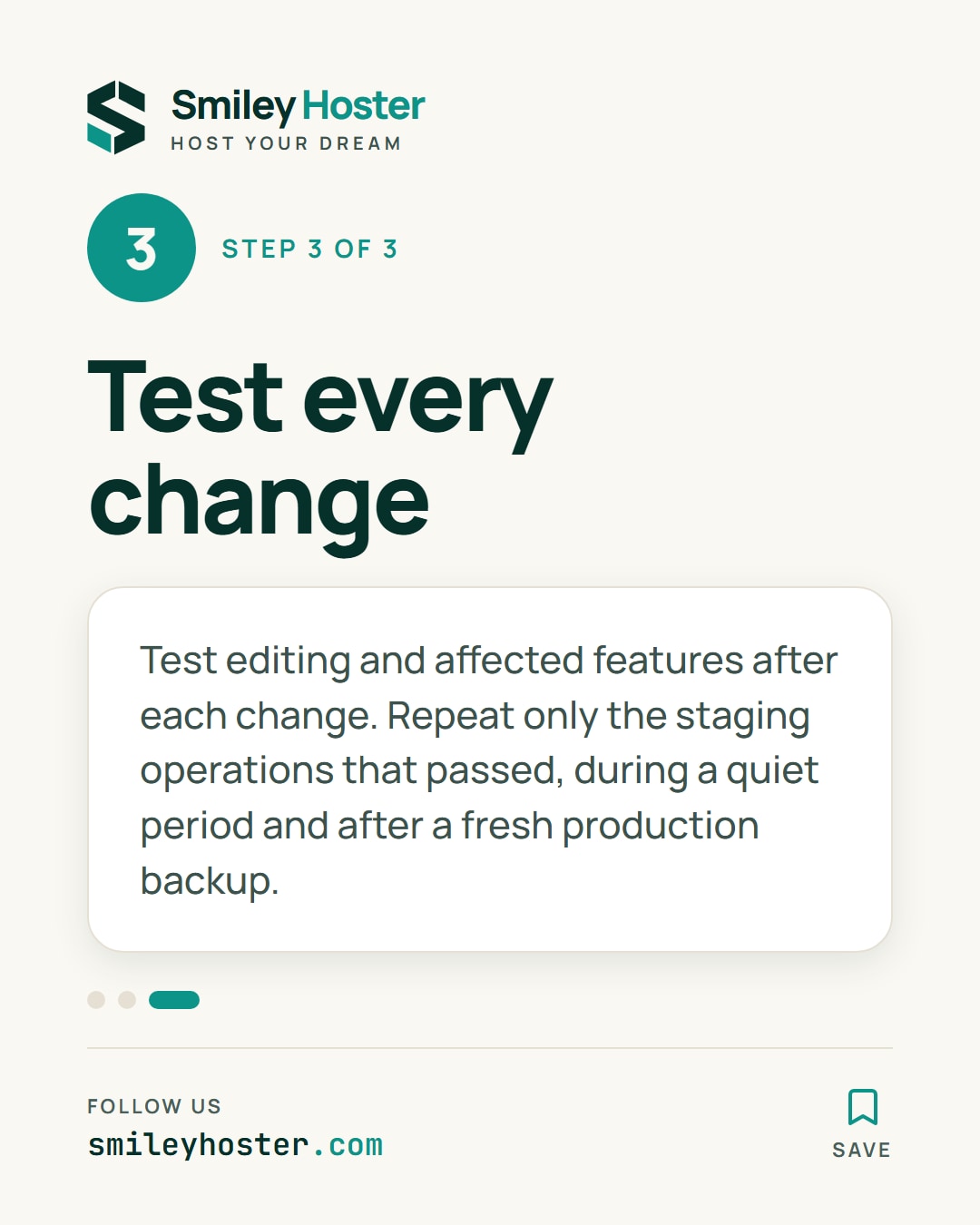
After each category, open the editor, save a disposable draft and test the affected functions: search, forms, customer accounts or the cart. Compare table sizes and the autoload measurement with your baseline.
Physical storage may not shrink immediately after rows are deleted. Do not automatically optimise every table just to make the displayed size smaller.
Repeat only the staging operations that passed these checks on production, during a quiet period and after taking a fresh backup. Then run the same functional checks again.
Common failures come from deleting options by a broad name prefix, cleaning several categories together, or scheduling recurring cleanup before understanding its effect. Keep an operation record that identifies what was removed and which backup can recover it.
Sources: WP-CLI options, WP-CLI transients, WordPress revisions.
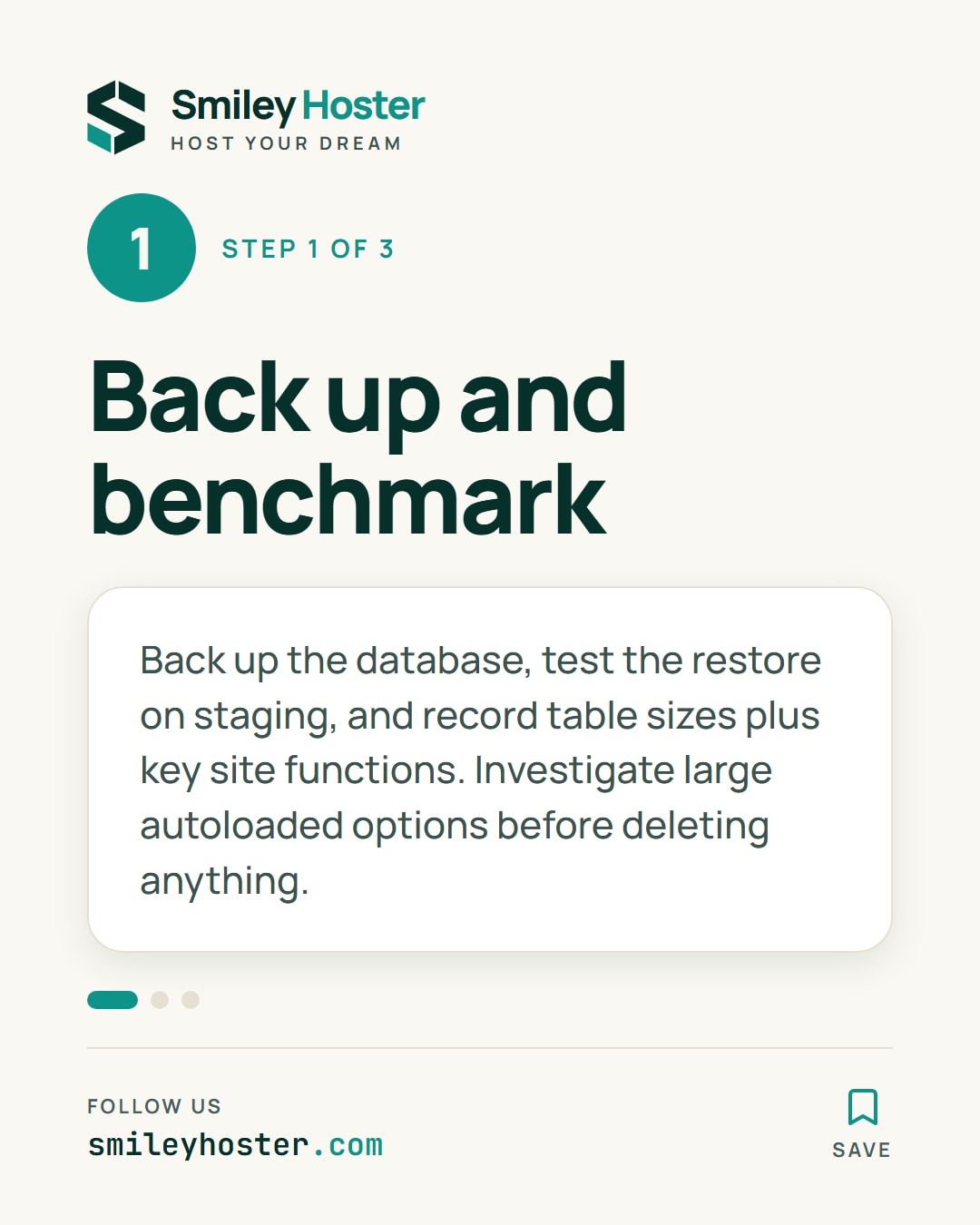
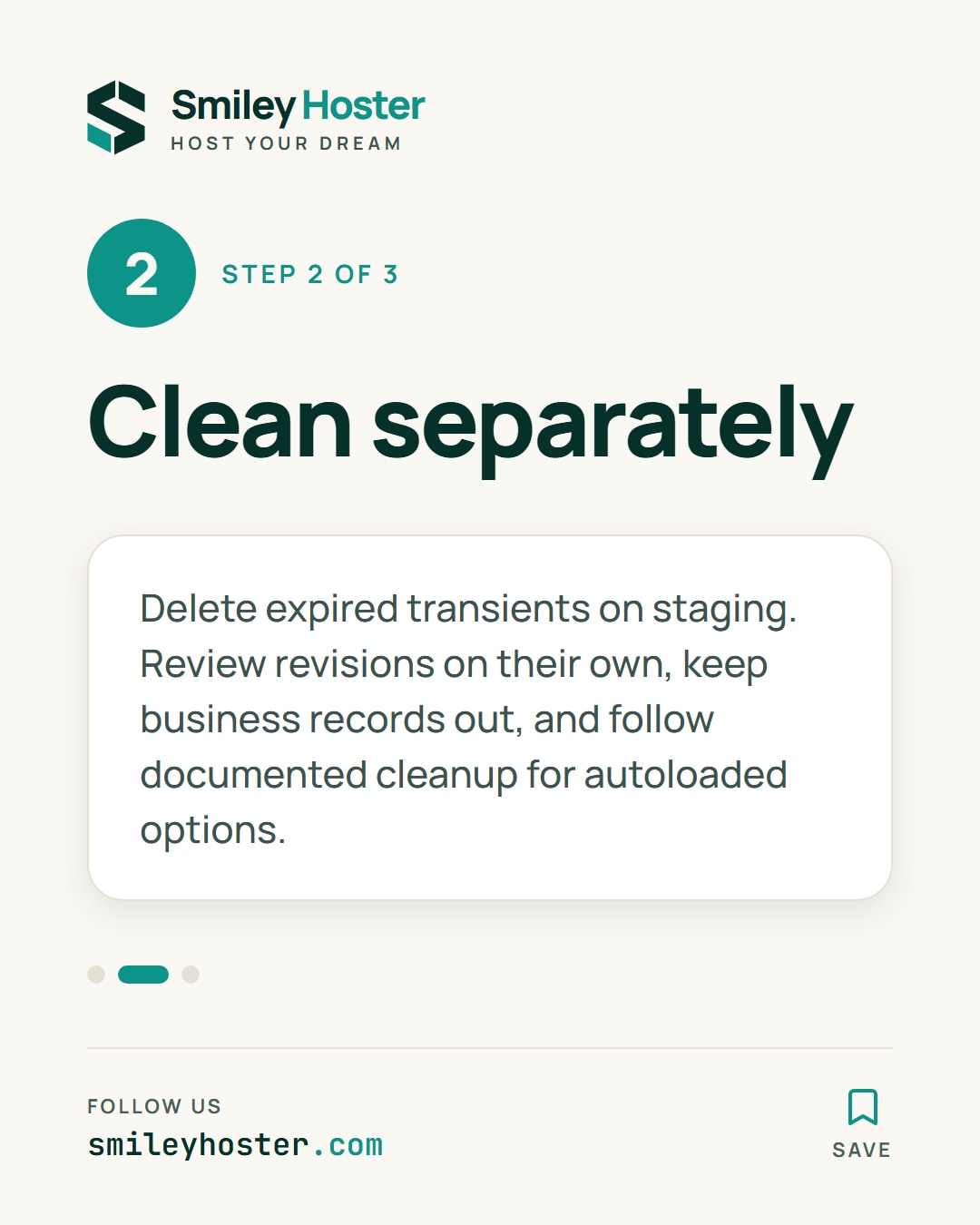
See it in our social posts
The key steps of this article, as a carousel. Follow us to catch the next ones.