

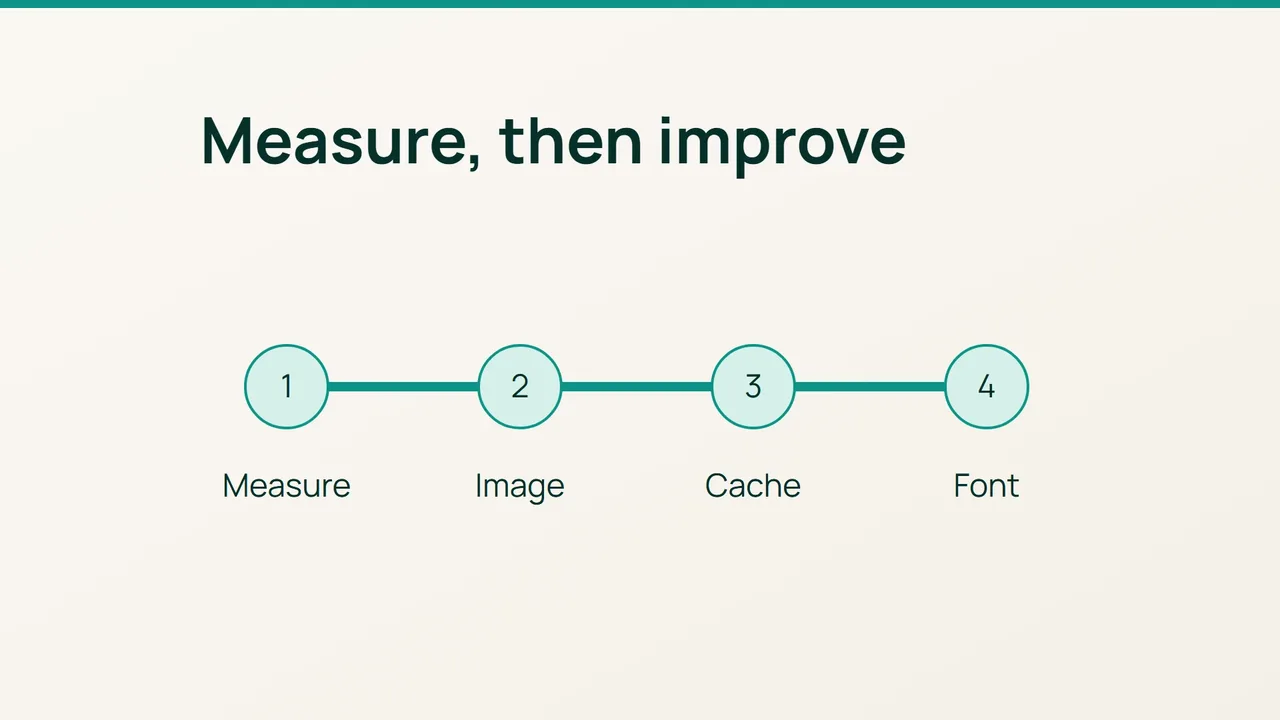
A slow WordPress page needs a diagnosis before another optimisation plugin. The LCP workflow documented by web.dev gives you a practical starting point: identify the largest visible element, find what delays it, and test one change.
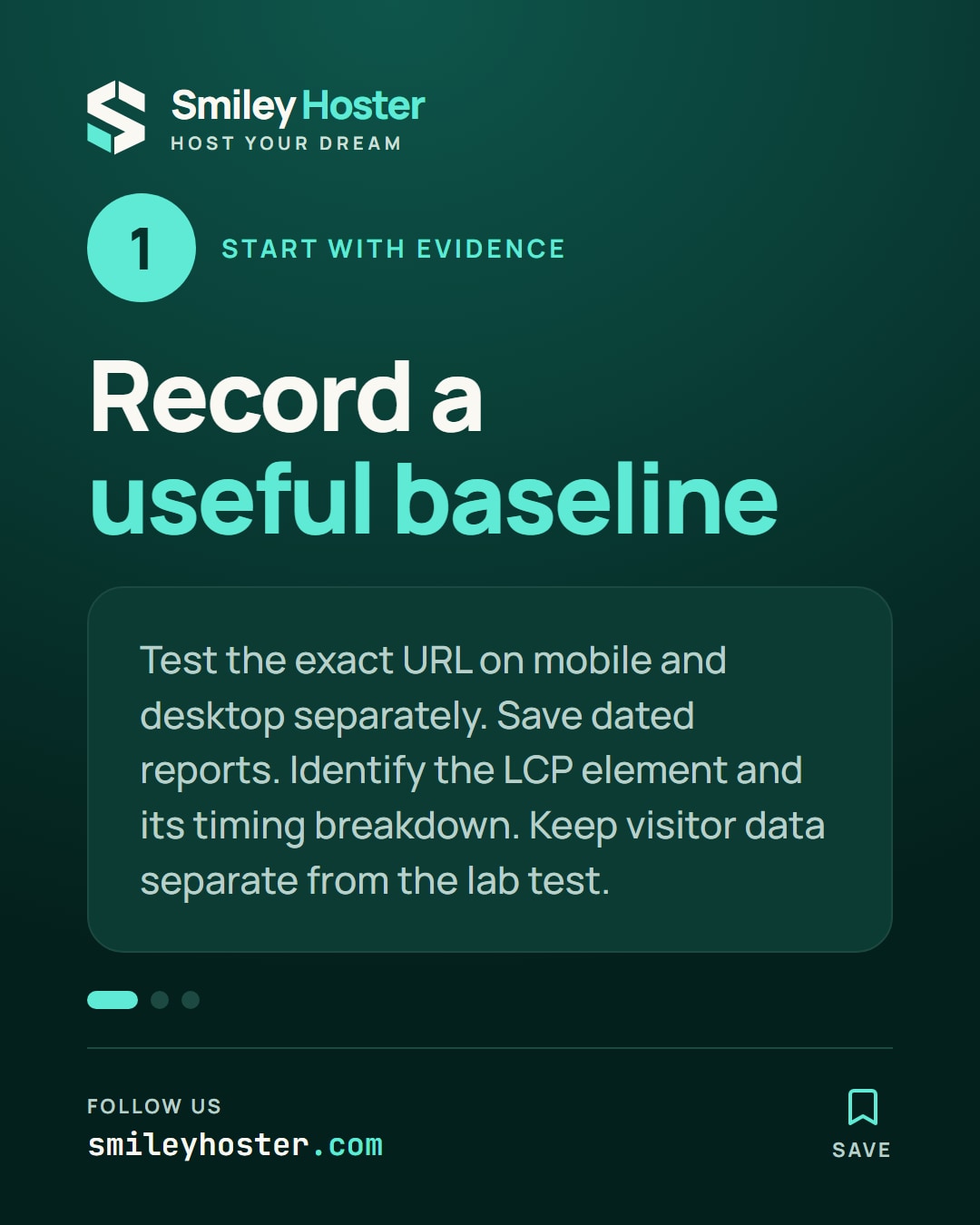
1. Record a useful baseline
Open PageSpeed Insights and test the exact public URL on mobile. Save the report with the date, then run a separate desktop test. Keep those comparisons separate.
The visitor data covers a trailing 28-day period; the Lighthouse run is a new laboratory measurement. Check whether visitor results describe this page or the whole origin. Missing visitor data is not a pass.
Find the Largest Contentful Paint element in the diagnostic results. Write down whether it is the main image, a heading or another text block. Read the timing breakdown before deciding what to change. Also retain the available CLS and INP results, because LCP is only one part of Core Web Vitals.
Use this worksheet for the change record:
Page URL:Device and date:LCP element:Baseline LCP:Single change:New LCP:2. Match the change to the delay
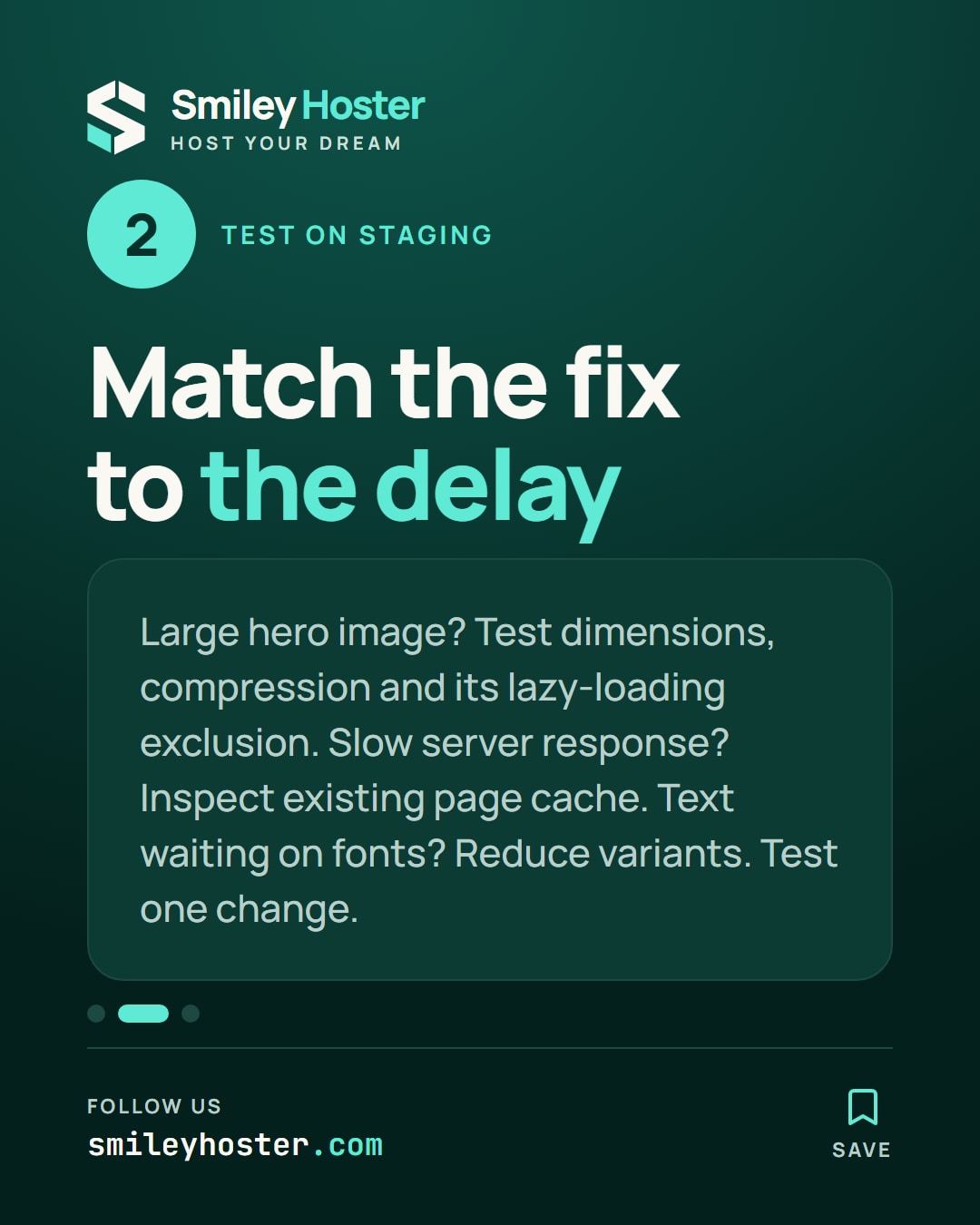
Use a staging copy with representative content. Pick the relevant branch, rather than applying every optimisation setting together.
For a large hero image, try appropriate dimensions and compression, then compare visual quality. Exclude that specific image from lazy loading using your existing image or performance plugin. Leave below-the-fold images eligible for delayed loading. Check that a second plugin does not undo the exclusion.
For a long server response, inspect the page cache already available. Compare an anonymous request with a repeat visit to the same public page. Do not stack cache plugins or cache personalised account content as public HTML.
For text waiting on a font, reduce the font variants you actually use. A setting to test inside the existing font-face declaration is:
font-display: swap;That line needs its surrounding font declaration; it is not a standalone stylesheet. Watch for text moving when the downloaded font replaces the fallback.
Write down the exact setting and previous value. That makes rollback straightforward if the page becomes faster but harder to use.
3. Retest the page and its actions
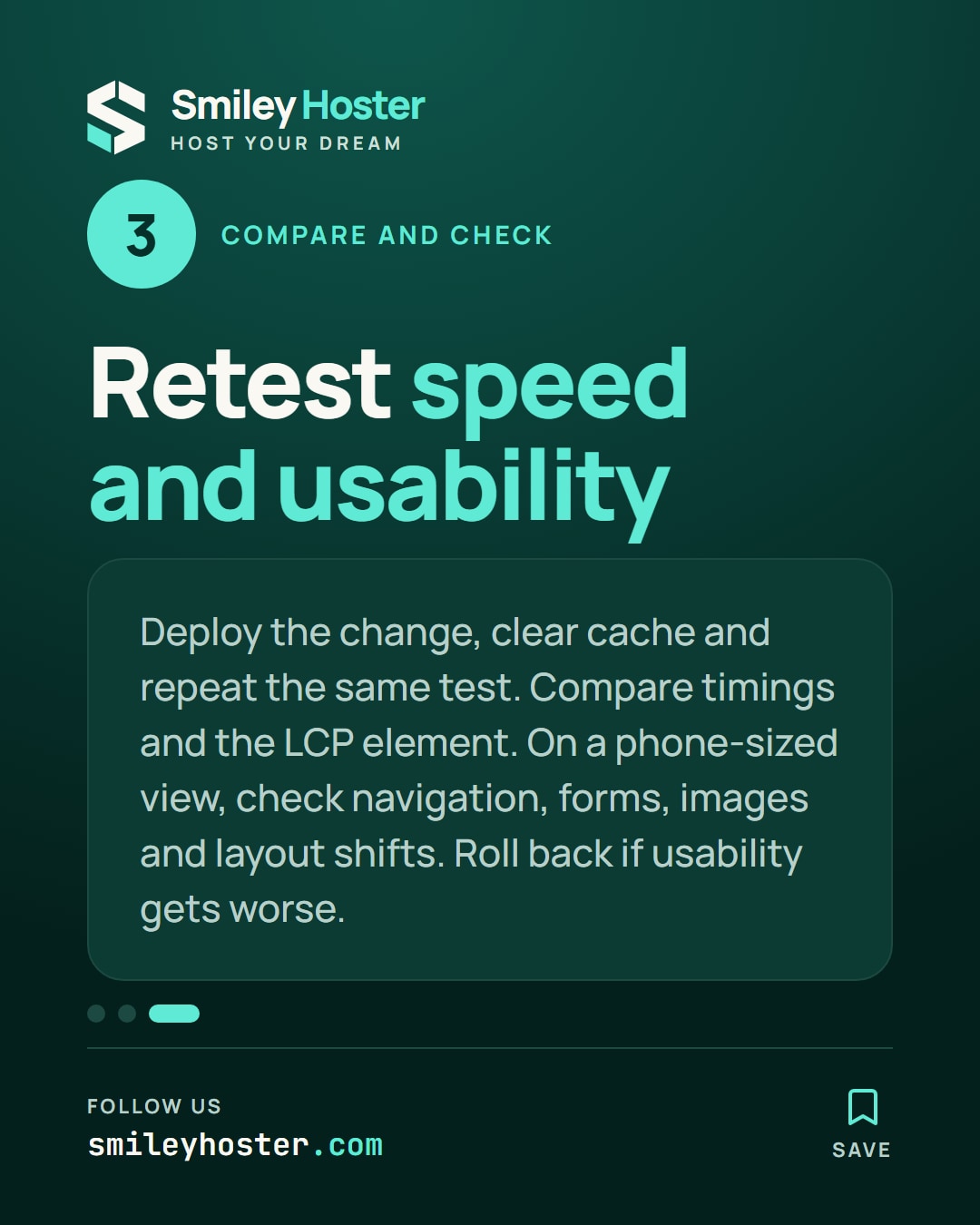
Deploy the chosen change, clear the relevant cache and repeat the same PageSpeed test several times. Compare timings and the identified LCP element, not just the headline score.
Then browse on a phone-sized viewport. Open the navigation, submit a test form and visit an inner page. Look for blurry images, missing content and layout shifts. Restore the prior setting if those checks regress.
Common mistakes include prioritising every image, shrinking a thumbnail that was never the LCP, and expecting historical visitor data to update immediately. Keep the before-and-after reports so your next adjustment starts from evidence.
Sources: web.dev, Google PageSpeed Insights.

See it in our social posts
The key steps of this article, as a carousel. Follow us to catch the next ones.