

A database connection error does not, by itself, mean your WordPress data is damaged. WordPress documentation separates configuration mistakes from hosting problems; use that distinction to decide what to check before attempting a repair.
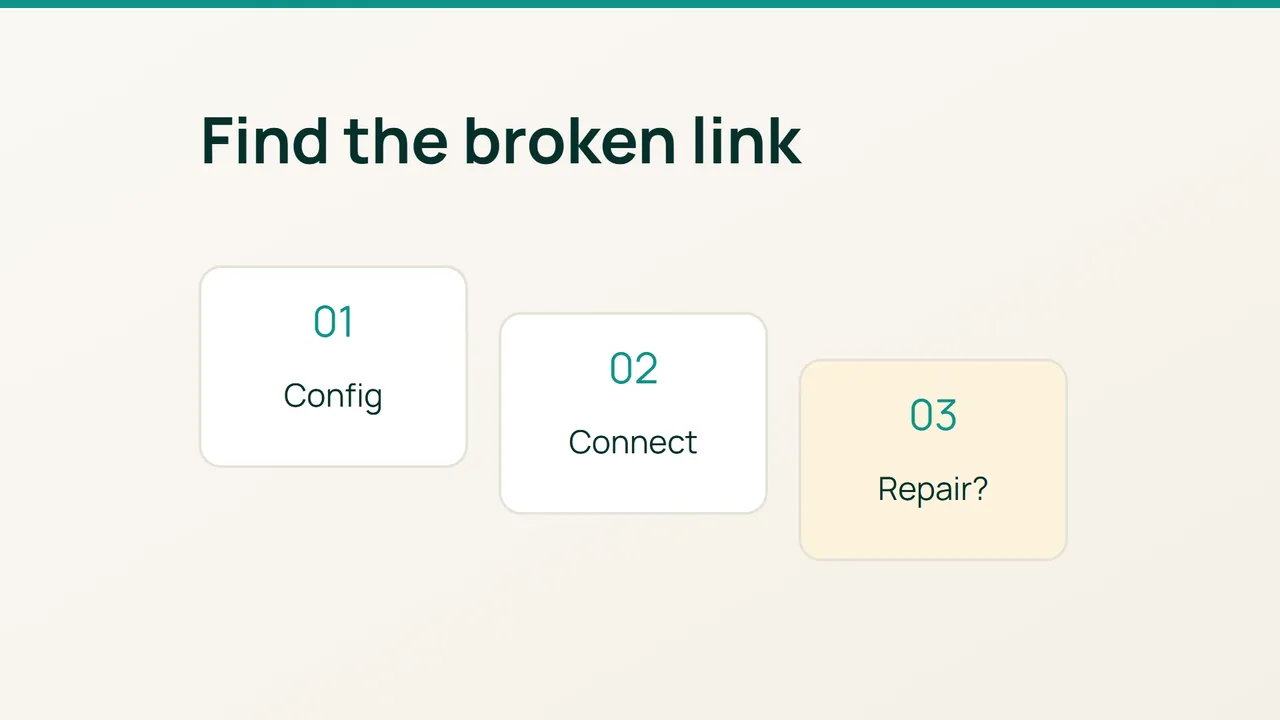
1. Match the configuration to the database account
Record when the failure started and what changed just beforehand. Check both the public site and the dashboard. A cached page can still appear healthy while database access is broken.
Get a private backup of wp-config.php through SFTP or your hosting file manager. Do not leave a downloadable backup beside the public site. Compare these four settings with your hosting database panel:
DB_NAME : this site's databaseDB_USER : the attached database userDB_PASSWORD : that user's passwordDB_HOST : the host supplied by your providerAccount prefixes matter. Do not shorten a database name or assume its host is localhost. Your WordPress administrator password is not the database password.
If resetting the database password is necessary, update every application using that database user. Keep the new value out of support messages. Edit only the relevant PHP value, preserving valid quotes and punctuation.
2. Identify which connection check fails
In the hosting panel, confirm that the database exists, the user is assigned to it and the required permissions are present. Check quota warnings and any database service incident.
With terminal access and a MySQL client available, you can test the same connection details. Replace all three placeholders:
mysql -h DATABASE_HOST -u DATABASE_USER -p DATABASE_NAMEEnter the password at the prompt rather than adding it to the command. An authentication failure points towards account details or permissions. A refused connection calls for a service or network check.
If the provider needs to investigate, send the timestamp, a redacted error and the checks already completed. This is more useful than a screenshot containing the configuration file.
Do not delete tables or start a repair to address an unreachable database server. Those actions operate on a different problem.
3. Repair only when damaged tables are reported
When access works but WordPress reports damaged tables, obtain a database backup before proceeding. Temporarily add this configuration setting:
define( 'WP_ALLOW_REPAIR', true );Open /wp-admin/maint/repair.php on your own domain and run the repair. Remove the setting immediately afterwards: the repair facility does not require an administrator login while enabled. If repair fails, retain its report and arrange a controlled recovery with your provider.
Verify the result by loading uncached pages, signing in and saving a disposable draft. Confirm the repair facility is no longer enabled.
Frequent mistakes include confusing the table prefix with the database name, repairing before checking credentials, and restoring an old backup without accounting for newer orders or posts. Record the actual cause so the next incident starts with a useful clue.
Sources: WordPress common errors, WordPress configuration.