

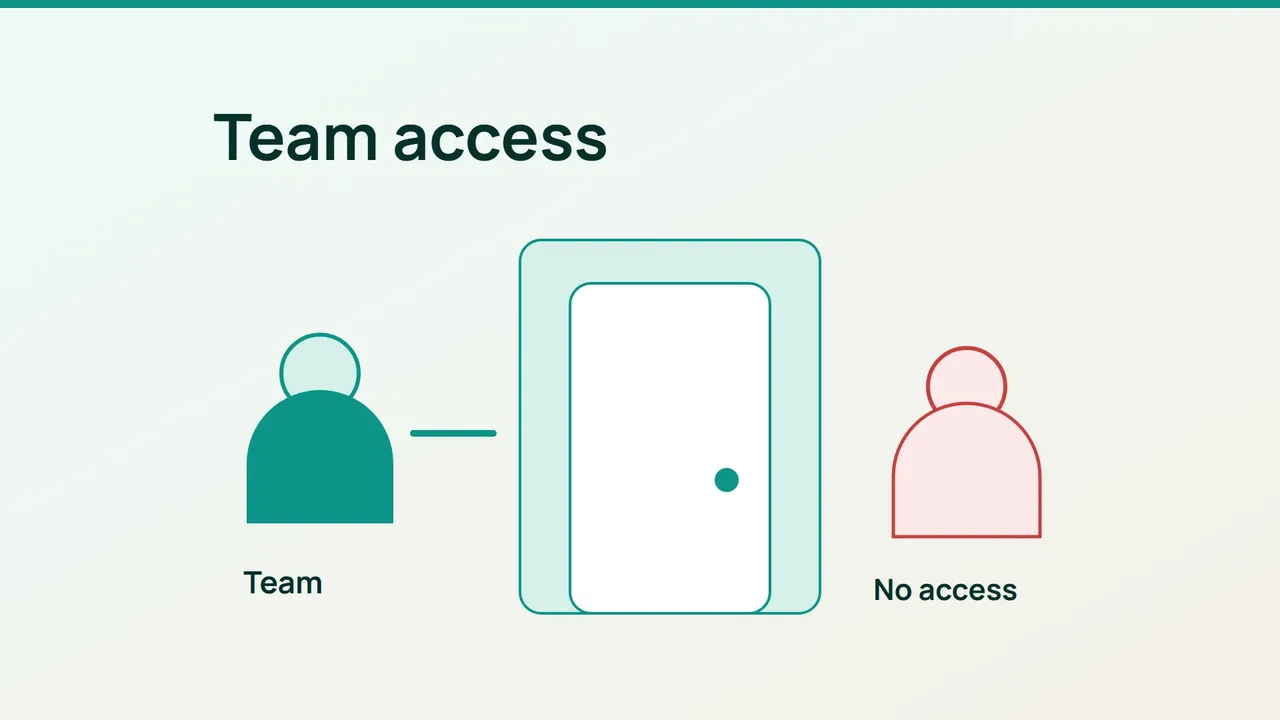
Recent storefront security investigations are a useful prompt to review the environments around a production site. A staging hostname should have a deliberate audience, and Cloudflare Access can put an identity check in front of it.
1. Define who should be able to enter
Use a dedicated hostname such as preview.example.com in an active Cloudflare zone. List the people who need it: developers, an agency and perhaps a client carrying out acceptance tests.
Prepare two test identities. One belongs on the approved list; the other must be denied. Testing only with your own administrator account proves very little about the boundary.
Inventory automated consumers as well. Monitoring and integration jobs may not follow an interactive browser login. Plan their authentication separately instead of opening the entire application to solve one machine-access problem.
Keep the staging environment populated with test data. An extra access layer is not a reason to retain unnecessary customer records or production exports there. Record who owns the environment and when its access list should be reviewed.
2. Configure Access before exposing the route
In Zero Trust, open Access controls and Applications. Create an application using Self-hosted and private, then add the public hostname you selected.
Attach an Allow policy for the intended identities and choose the team's identity provider. Review the session duration and available authentication options before creating the application. Access applications deny users by default unless an Allow policy matches them.
Cloudflare recommends creating the Access application before publishing a Tunnel route. If the origin is already publicly reachable, its direct address needs protection as well; a login page on the public hostname does not automatically close that alternate route.
The documentation also requires validation of the Access application token to secure the origin. Have the server operator implement that validation for your connection method before marking the configuration complete.
3. Prove that access is selective
Start a fresh browser session and check that authentication happens before staging content appears. Sign in as the approved user, then open a deep link and an asset the team actually needs.
Repeat with the denied identity. Successful authentication at the identity provider must not, by itself, grant access to this application. Record the denial as part of the acceptance evidence.
Ask the origin operator to run an authorized direct-access test without a valid application token. The protected content must remain unavailable through that route. If it is still served, the deployment is incomplete even when the normal hostname displays a login page.
Store all three outcomes with the environment's owner. Review access when contractors leave or the project ends, rather than allowing a temporary staging audience to become permanent.
Sources: Cloudflare Blog, Cloudflare documentation.