

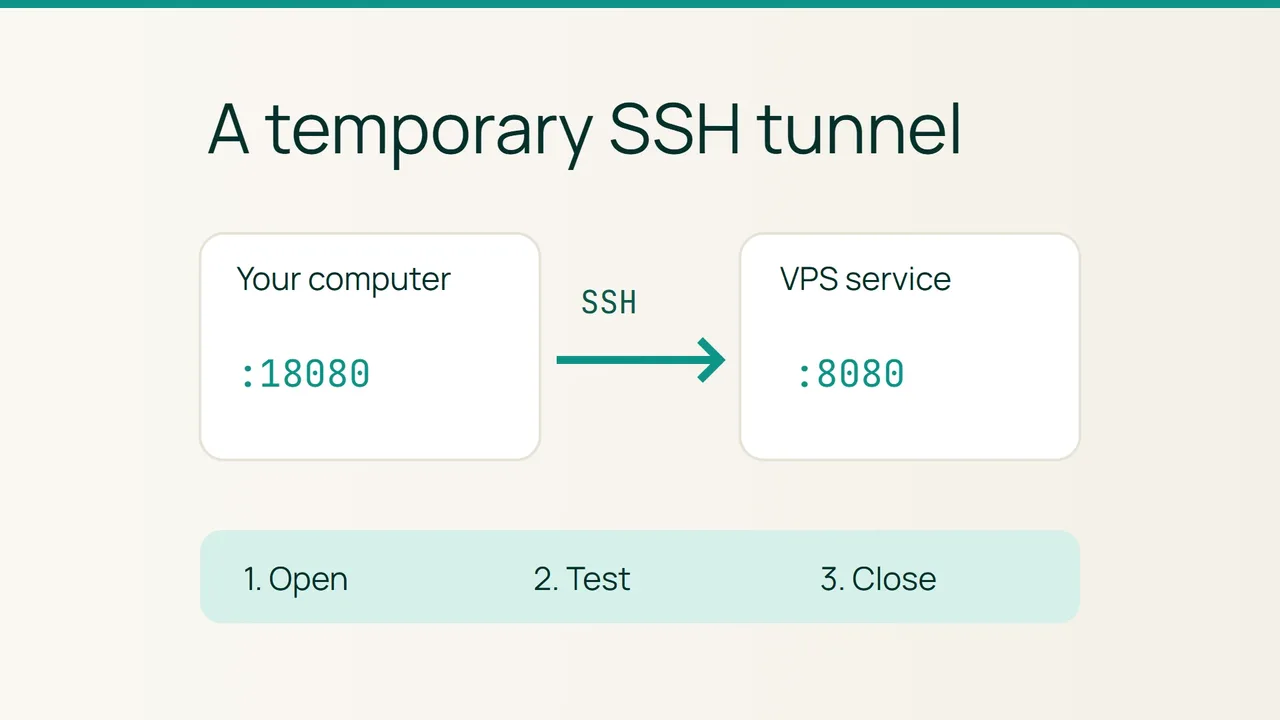
Vultr's recent Cycle.io announcement highlights changing ways to operate infrastructure. When you only need to inspect a private web service on a VPS, a temporary SSH tunnel gives you a manual access path that you can test and close afterwards.
1. Confirm where the application listens
You need a working OpenSSH login, a server that permits TCP forwarding, and an HTTP application already reachable from the VPS at 127.0.0.1:8080. Ask the application owner to confirm that endpoint instead of guessing a port from the product name.
This example assumes the service is reachable from the VPS host itself. A container's loopback address may refer to a different environment, so establish how the application is exposed to the host before using this command.
Write down the small task you intend to complete, such as checking the test environment's status page. Keep the application's normal login requirements in place. A tunnel transports the connection; it is not a replacement for application authentication.
You do not need to open the web application's port in the public firewall for this workflow. Keep your existing SSH access method available.
2. Start a foreground tunnel from your computer
Replace the remote account and example VPS address below. The command is on one line so you can use it without shell-specific continuation characters:
ssh -N -L 127.0.0.1:18080:127.0.0.1:8080 deploy@192.0.2.25The first address restricts the listener to your computer. Port 18080 is the local entry point. The second 127.0.0.1:8080 is reached from the VPS side. With -N, SSH does not run a remote command.
Complete the usual server identity check and authentication, then leave that terminal open. If another program already uses the local port, choose a free local port and update the browser address accordingly.
Do not substitute 0.0.0.0 as a troubleshooting shortcut: it changes who can reach the listener. If the server refuses forwarding, ask its administrator to check the intended access policy.
3. Verify the page and end the session
Visit http://127.0.0.1:18080. Check something specific to the expected environment before carrying out your planned inspection.
An open SSH terminal does not prove that the application is responding. If the page fails, separate the login, local listening port and remote application endpoint in your diagnosis. Also watch for HTTP redirects to another hostname, which can take the browser away from the tunnel address.
When finished, press Ctrl+C in the tunnel terminal and reload the page. The application should no longer be reachable through that tunnel. If content remains visible, distinguish a cached page from another local process serving the same port. Record the inspection result and close the browser window used for it.
Sources: Vultr, ssh documentation.

See it in our social posts
The key steps of this article, as a carousel. Follow us to catch the next ones.